
Twenty-nine ways lawyers, in-house counsel, juniors and compliance teams use Eulex Desk day to day — each with the steps, the result, and where it lives in the product.
The scenarios follow the most common applications of legal AI (document review, legal research, summarising, drafting and extracting data from contracts) adapted to Croatian and EU practice.
Assistant
1. Quick NDA review — flag unfavourable clauses
Who: Lawyer in a law office. Situation: An NDA arrived an hour before the meeting; a fast risk read for the receiving party is needed.
The most common moment in practice: a document arrives, the meeting is in an hour, and you need to know where the risks are. Instead of reading cover to cover, you attach the NDA to the Assistant and ask one precise question. Eulex Desk reads the whole document, identifies the governing law and returns a structured summary in which every claim is tied to a specific clause. Risky provisions — an overlong confidentiality term, a one-sided penalty, exclusive jurisdiction — are flagged and explained from the perspective of the party you represent. Clicking a citation opens the source passage, so nothing has to be taken on trust.
Result: A summary with warnings (overlong confidentiality term, one-sided penalty, exclusive jurisdiction), every claim cited.
Tips
- Say which party you represent — risk analysis depends on perspective.
- Ask for a limited number of points (5–7); longer summaries lose focus.
- Follow up on a single clause in the same chat — the document context persists.
See: /docs/assistant · /docs/documents
Screencast (67 s): Attaching an NDA and analysing it — unfavourable clauses flagged, every claim cited
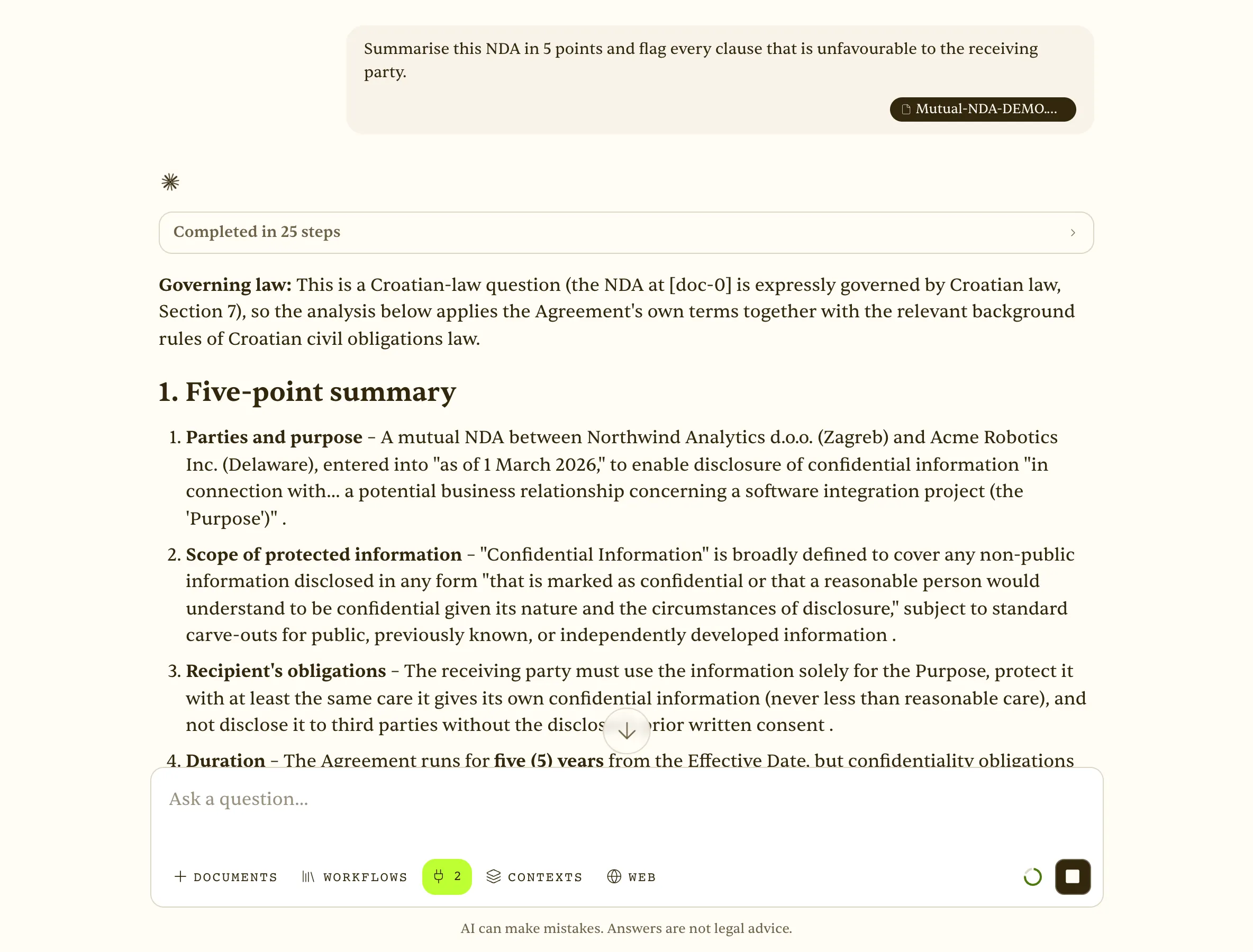 NDA attached and analysed — summary with unfavourable clauses flagged, each claim cited
3. Legal research with citations — limitation periods (Obligations Act)
Who: Lawyer. Situation: Needs the exact limitation period and when it starts to run, with the article.
Classic legal research: what is the limitation period, when does it start, what are the exceptions. Eulex Desk does not answer from the model’s general memory — it searches Croatian legislation (Narodne novine) and case law through built-in connectors, visible in the ‘Working… → Called Hrvatska · Search legislation’ panel. The answer cites the articles, and each citation opens a side panel with the verbatim article text, gazette number and a link to the official source. For a practitioner, verifying the source is one click, not another search.
Result: An answer pointing to specific articles, cited from the official source.
Tips
- Ask explicitly to ‘cite the articles’ — the answer then structures sources per article.
- Open ‘Completed in N steps’ to see which searches were run.
- For case law add ‘list relevant decisions’ — the decisions corpus is searched too.
See: /docs/assistant · /docs/legal-sources
Screencast (179 s): Legal research — limitation periods under the Obligations Act with article citations and the citation panel open
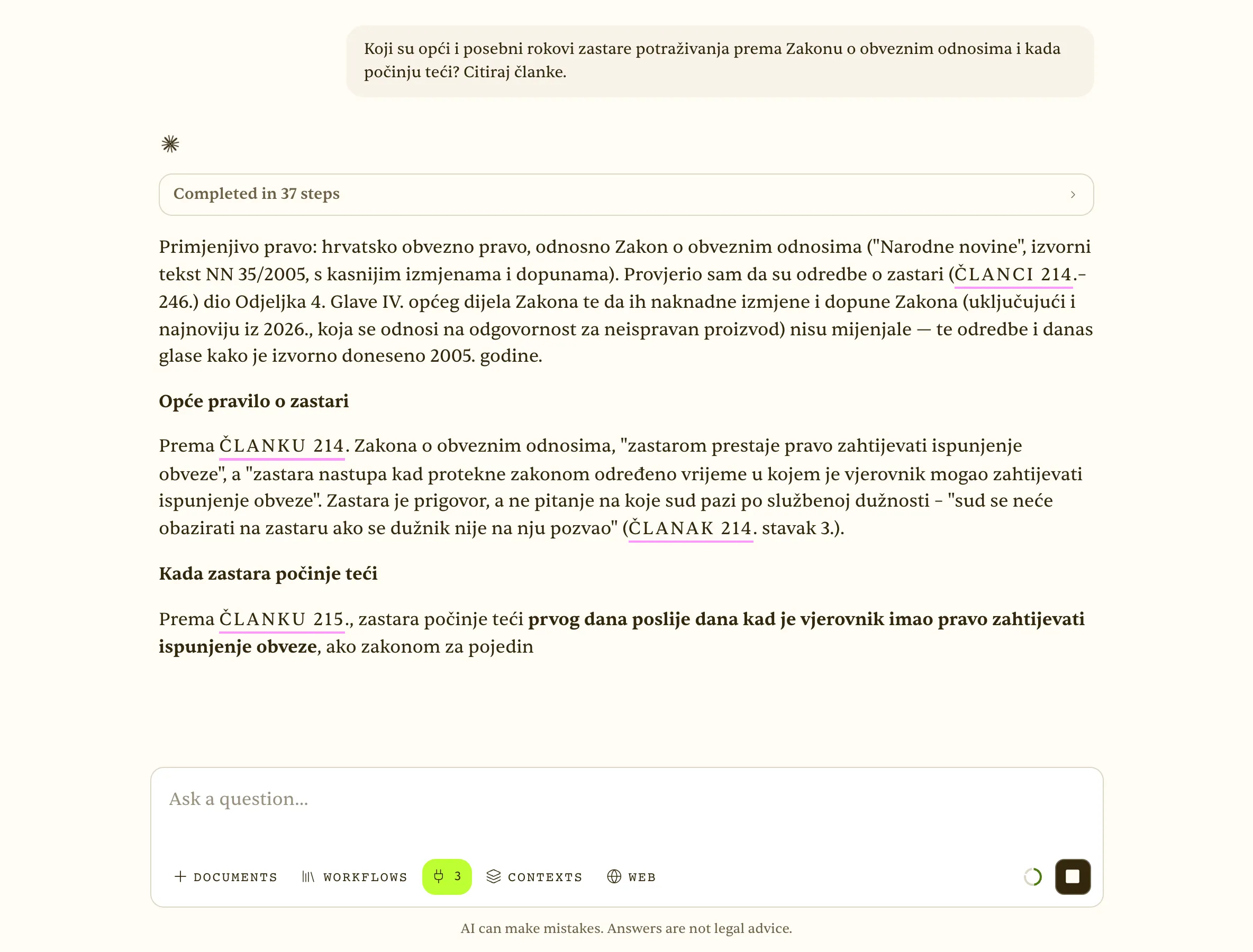 Legal research answer on limitation periods with article citations
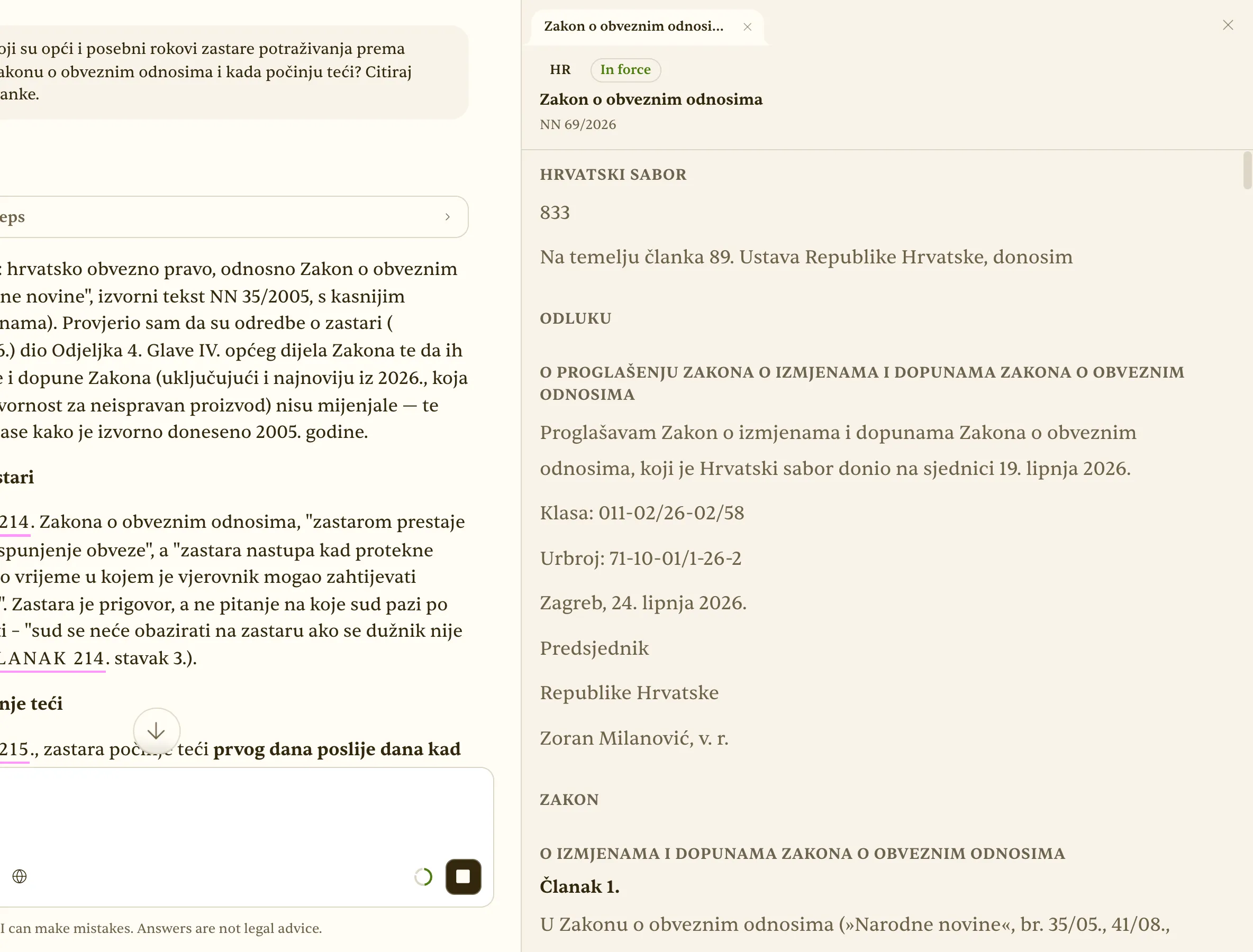 Citation panel — the cited article text and source link
4. Checking a current regulation via web search
Who: Lawyer tracking legislation. Situation: Has a new regulation entered into force and from when does it apply?
‘Has it entered into force’ demands currency no static corpus can guarantee. With the Web switch on, Eulex Desk searches official domains (Narodne novine, ministries, Tax Administration, courts, registers), the general web and ~30 days of news, so the answer distinguishes what was published in the gazette from what is only a draft in consultation. In the demo, Eulex correctly corrects the premise: there is no new Labour Act, the current one is NN 93/2014 as amended, and the pay-transparency amendment is in preparation — with source and date.
Result: A current answer with a direct official source.
Tips
- Turn Web on only when currency matters — without it the answer is faster.
- Ask explicitly for the gazette number and entry-into-force date.
- For conceptual questions switch Web off so sources are statutes, not news.
See: /docs/assistant
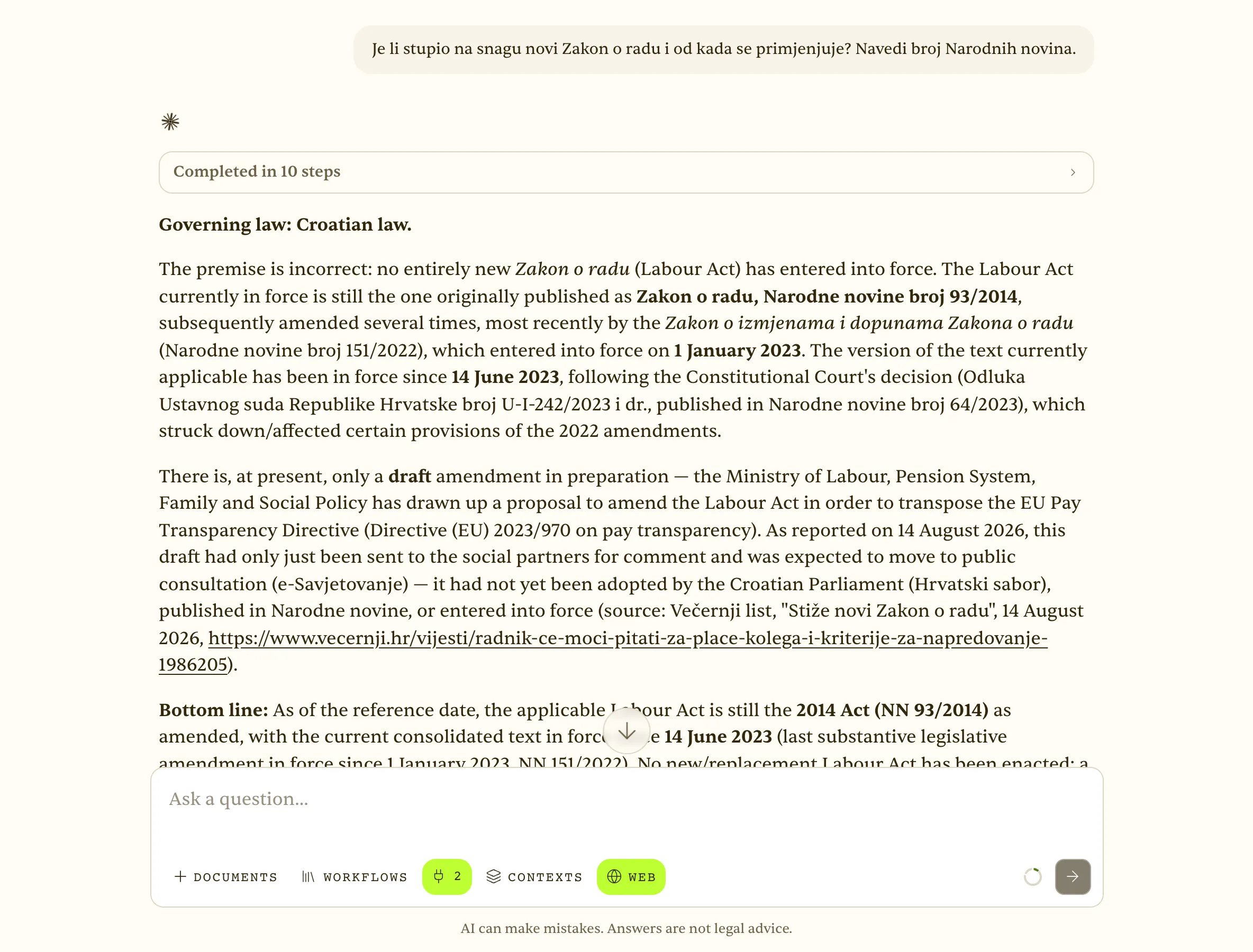 Web pretraga uključena — odgovor s citiranim službenim izvorom (Narodne novine)
5. ‘Improve question’ — a junior sharpens the query
Who: Junior lawyer. Situation: Unsure how to phrase the question precisely.
Answer quality depends on question quality, and juniors often know the topic but not how to phrase it legally. ‘Improve question’ turns a rough phrase into three precise queries from different perspectives: normative (which provisions), compliance (which practical steps) and systemic (the wider framework). Choosing with key 1, 2 or 3 sends the sharpened query and immediately yields a better answer — while the junior learns how questions are asked in practice.
Result: A precise legal query and a better answer — the junior learns the phrasing along the way.
Tips
- Start from 2–3 words; the tool is most useful for rough queries.
- The normative variant returns cited provisions — best for research.
- The compliance variant returns steps — best for client instructions.
See: /docs/assistant
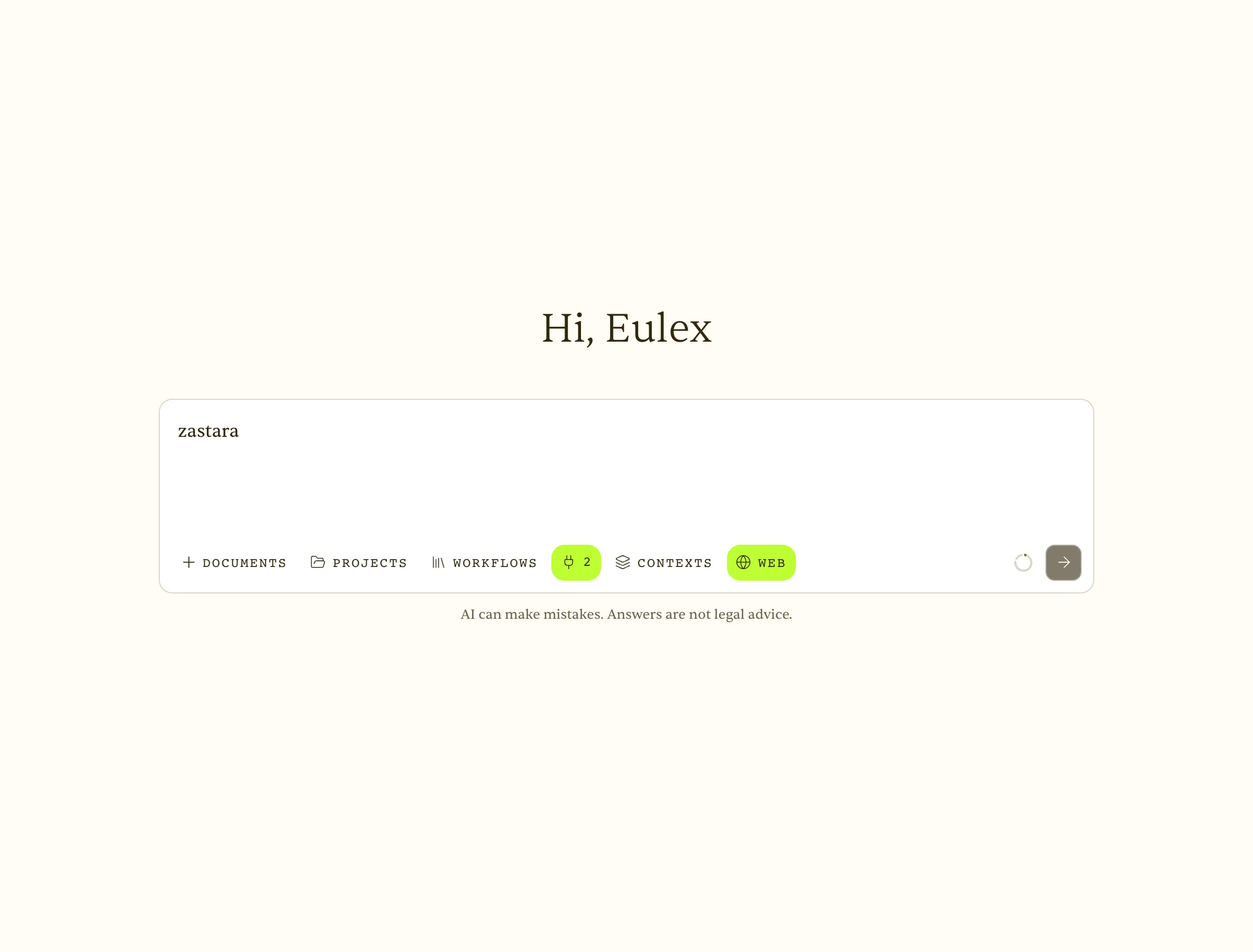 A rough one-word query typed into the Assistant
6. Reading a judgment or regulation from a public URL
Who: Lawyer. Situation: A judgment is available at a public URL; needs a summary and the legal basis.
A judgment, regulation or guideline often exists only as a public URL or PDF. Instead of copy-pasting, you paste the link; Eulex Desk reads the page or PDF (‘Reading link… / PDF read’) and returns a summary citing the source. In the demo with the NN 93/2014 link, Eulex recognises the original 2014 Labour Act text, warns that it has since been amended, and lists the legal basis including the EU directives it transposes.
Result: A summary of the external document without copy-paste, with the source cited.
Tips
- Works with PDFs at public URLs too (court decisions, EDPB guidelines).
- Ask for exactly what you need: ‘summarise key findings and legal basis’.
- For pages behind a login, upload the document as a file instead.
See: /docs/assistant
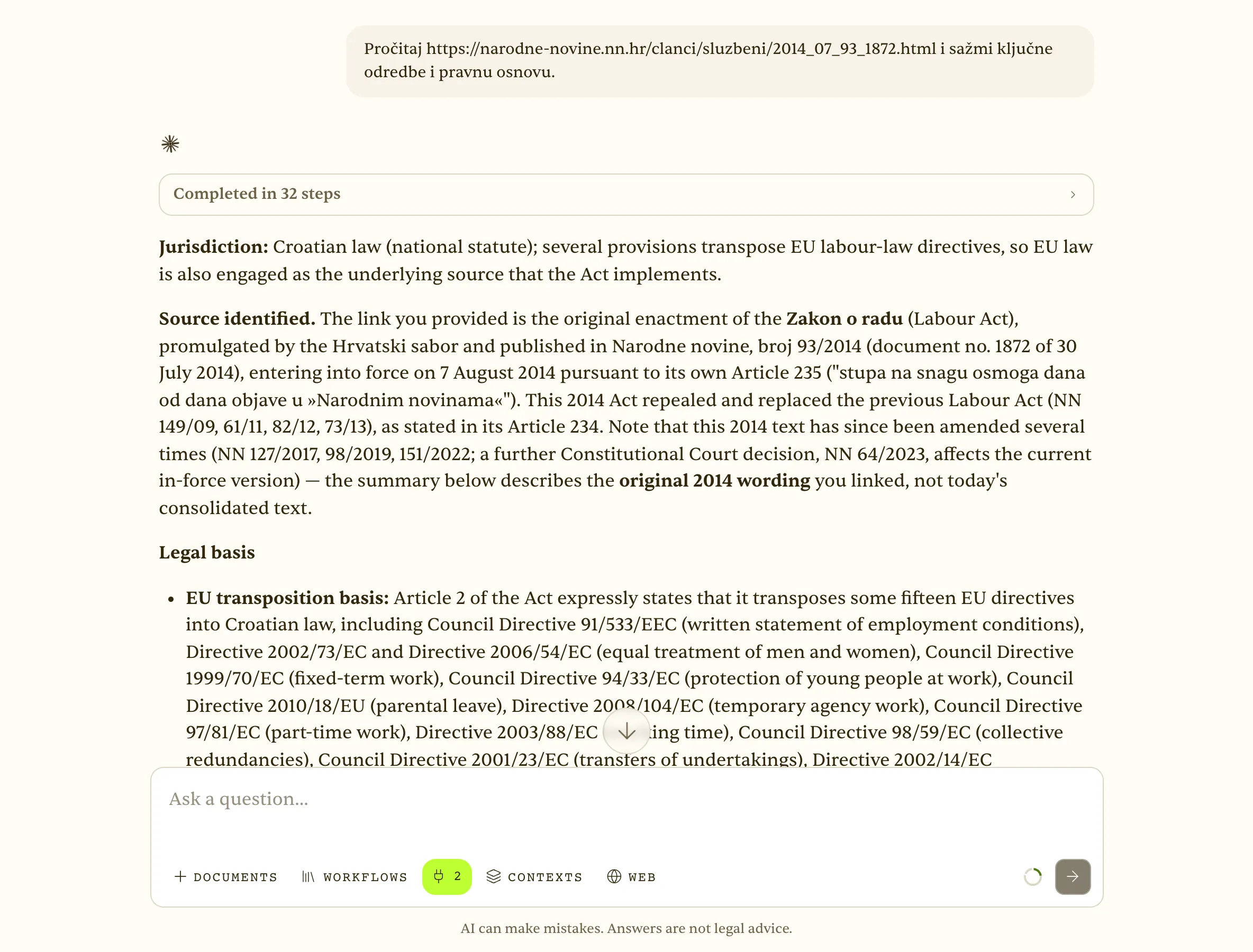 Zalijepljena poveznica — Eulex Desk pročita stranicu i sažme s citatom izvora
7. Drafting a service contract (.docx)
Who: Lawyer. Situation: Needs a first draft of a simple contract.
The hardest step of drafting is the blank page. From a short description (parties, fee, deadline, penalty) Eulex Desk generates a structured service contract under Croatian law as .docx, which opens straight in the document editor — to refine, version and download. The draft follows the customary structure and terminology and cites the Obligations Act provisions it relies on, so editing comes down to the client’s specifics.
Result: A clean first draft in Word — the hardest step (starting) is done.
Tips
- Give every variable in one prompt — parties, amounts, deadlines, sanctions.
- Ask to ‘generate as .docx’ to get a document rather than chat text.
- Refine in the editor by selecting text and giving an instruction (selection edit).
See: /docs/assistant · /docs/documents
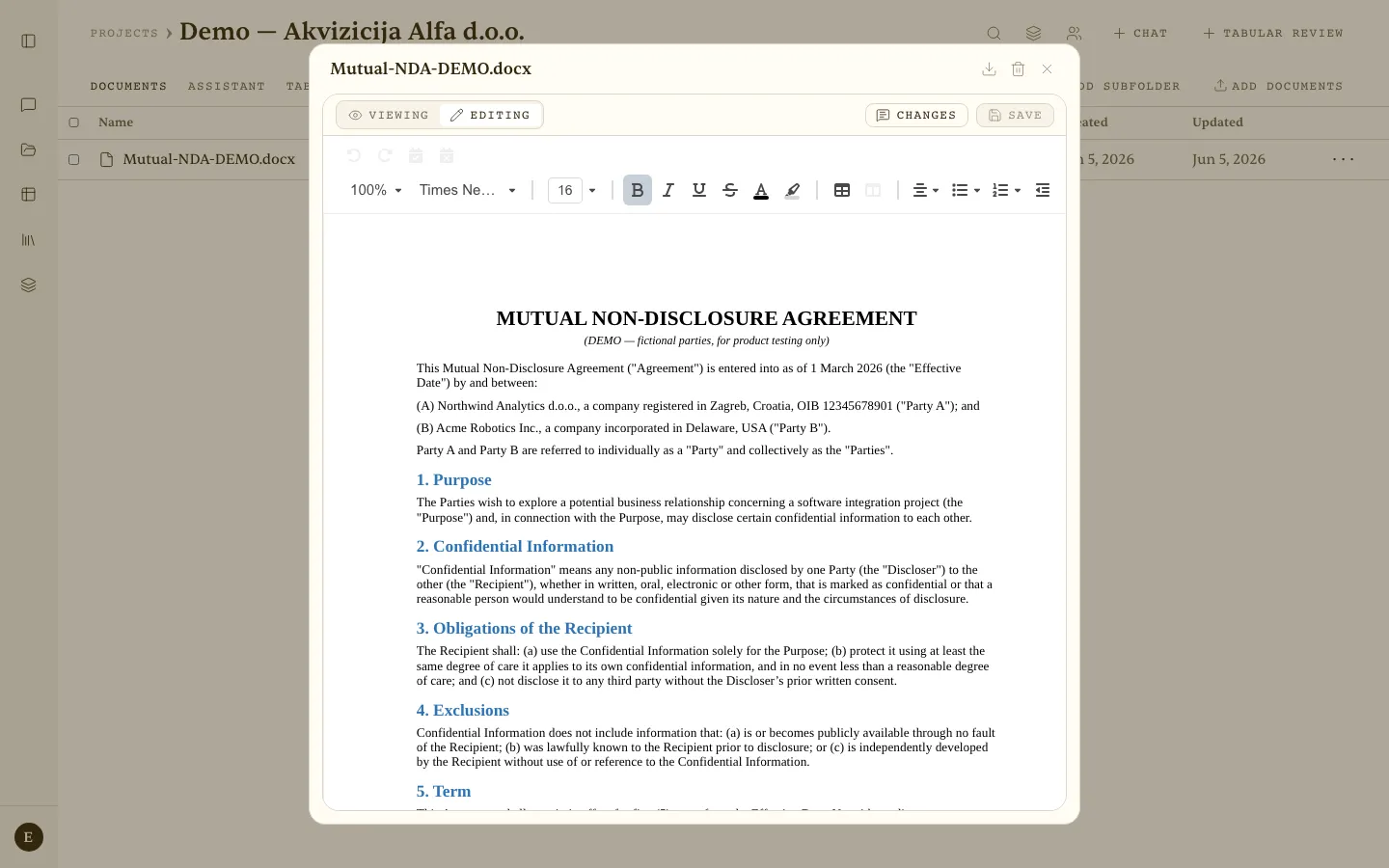 Document editor in Editing mode
8. EU law — data-breach obligations under the GDPR
Who: Compliance adviser. Situation: Needs the provision from EU law with a reliable citation.
For EU questions the answer must be grounded in EUR-Lex, not paraphrase. Enable EU legislation in the ‘Context’ switch and Eulex Desk searches regulations and directives with CELEX identifiers. The answer on controller obligations after a data breach cites Articles 33 and 34 GDPR, the 72-hour deadline and the exceptions, with citations that lead to the official text. The same mechanism covers the AI Act, DSA, NIS2 and other acts in the corpus.
Result: An answer grounded in EU law, linked to the source.
Tips
- Set EU as the default jurisdiction in account settings if you are a compliance team.
- Ask for the CELEX number in the answer — it eases further citation.
- Combine HR + EU context for questions about implementation in Croatia.
See: /docs/legal-sources · /docs/assistant
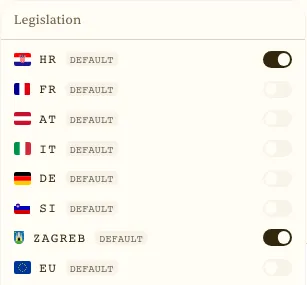 Legislation toggles in the Context popover
9. Comparing two versions of a clause
Who: Transactional lawyer. Situation: Two versions of a liability clause; needs the differences and an assessment.
Negotiations produce versions, and the differences between them are what matters. Attach two documents (or paste two clauses) to the same question; Eulex Desk compares them clause by clause, highlights the differences and assesses which version is more favourable to your side — every conclusion cited per document, so you see which version it comes from. Especially useful for liability, confidentiality and termination clauses.
Result: A clear comparison with reasoning, cited per document.
Tips
- Name the versions in the question (‘A = our draft, B = counterparty’).
- Limit the comparison to the clauses under negotiation.
- Ask for a table of differences for a quick overview.
See: /docs/assistant · /docs/documents
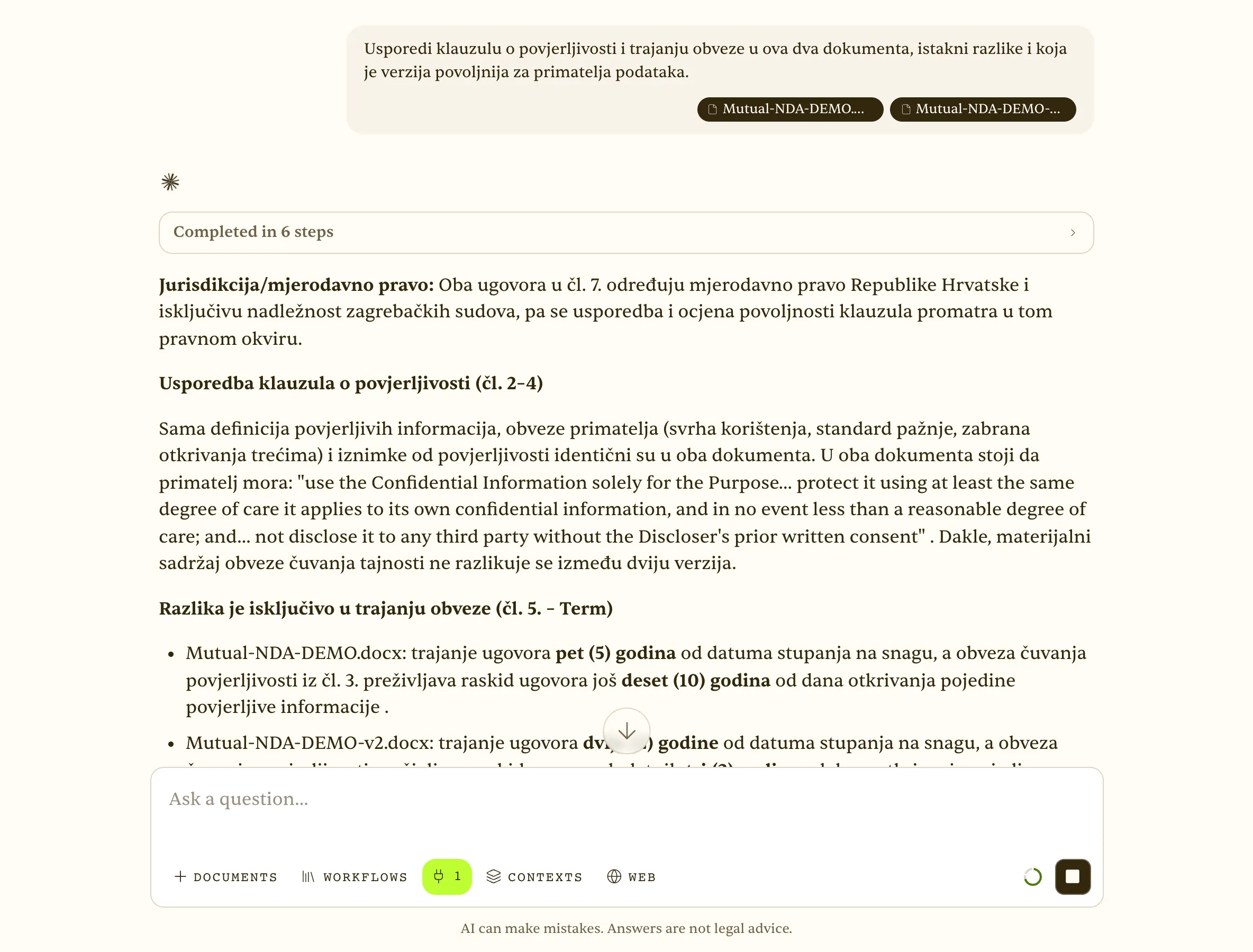 Dva priložena dokumenta i usporedba klauzula citirana po dokumentu
21. Appeal against a first-instance judgment — deadlines and grounds
Who: Litigation lawyer. Situation: The judgment arrived; need the deadline, admissible grounds and what new material may be raised.
Civil procedure is the most common topic among real Eulex Desk users. For an appeal the questions are always the same: the deadline, the admissible grounds (material procedural violations, wrongly or incompletely established facts, misapplication of substantive law) and the limits on new material. Eulex Desk searches the Civil Procedure Act and case law and returns an answer cited per article, with the citation panel open for verification — attach the judgment and the answer is tied to specific points of its reasoning.
Result: Deadline, admissible grounds and limits on new material — cited per article, ready for the appeal draft.
Tips
- Attach the judgment — the answer then references specific parts of the reasoning.
- Ask explicitly about new facts and evidence on appeal.
- Ask for the appeal structure as a .docx draft for a quick start.
See: /docs/assistant · /docs/documents · /docs/legal-sources
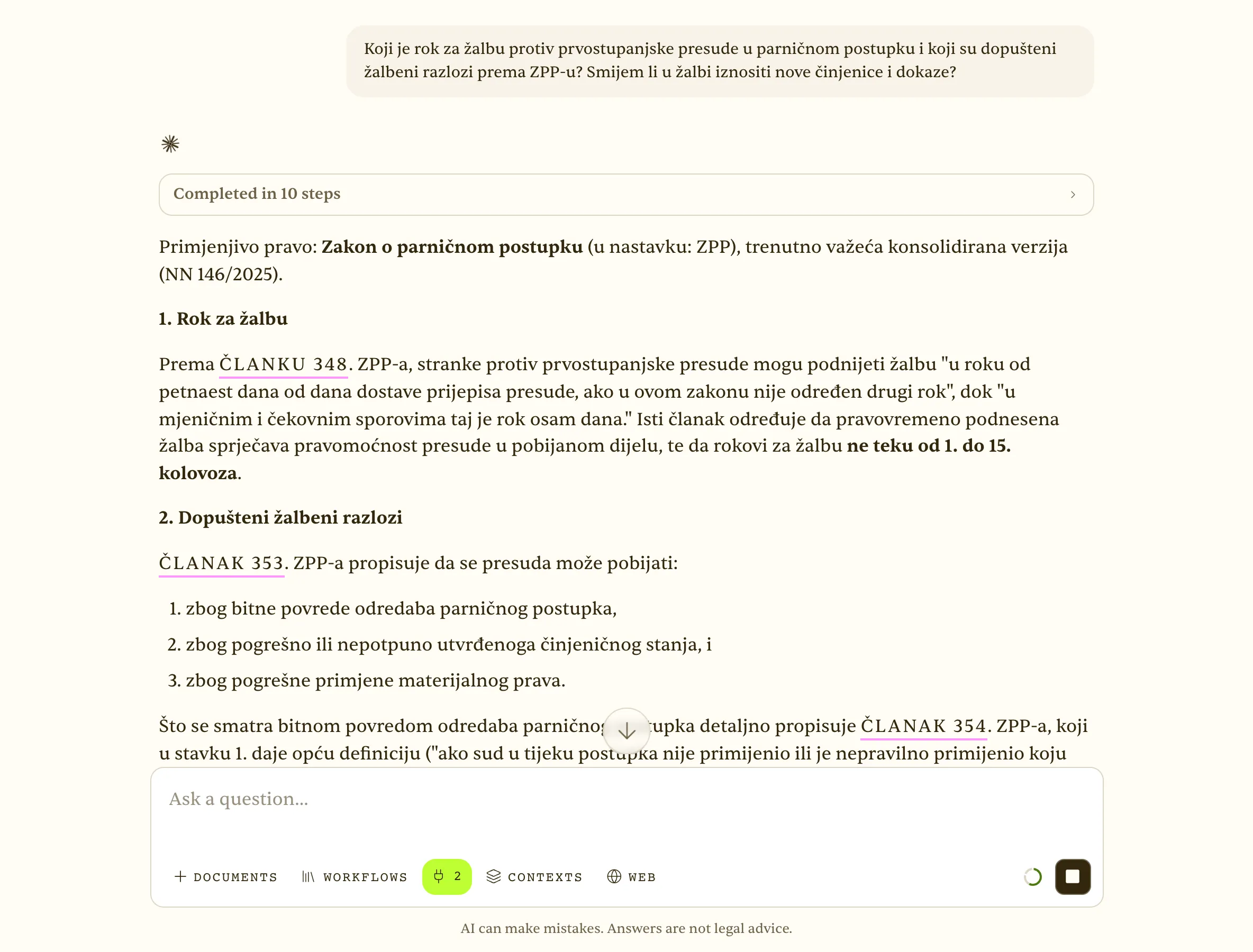 Appeal deadline and grounds under the Civil Procedure Act, cited per article
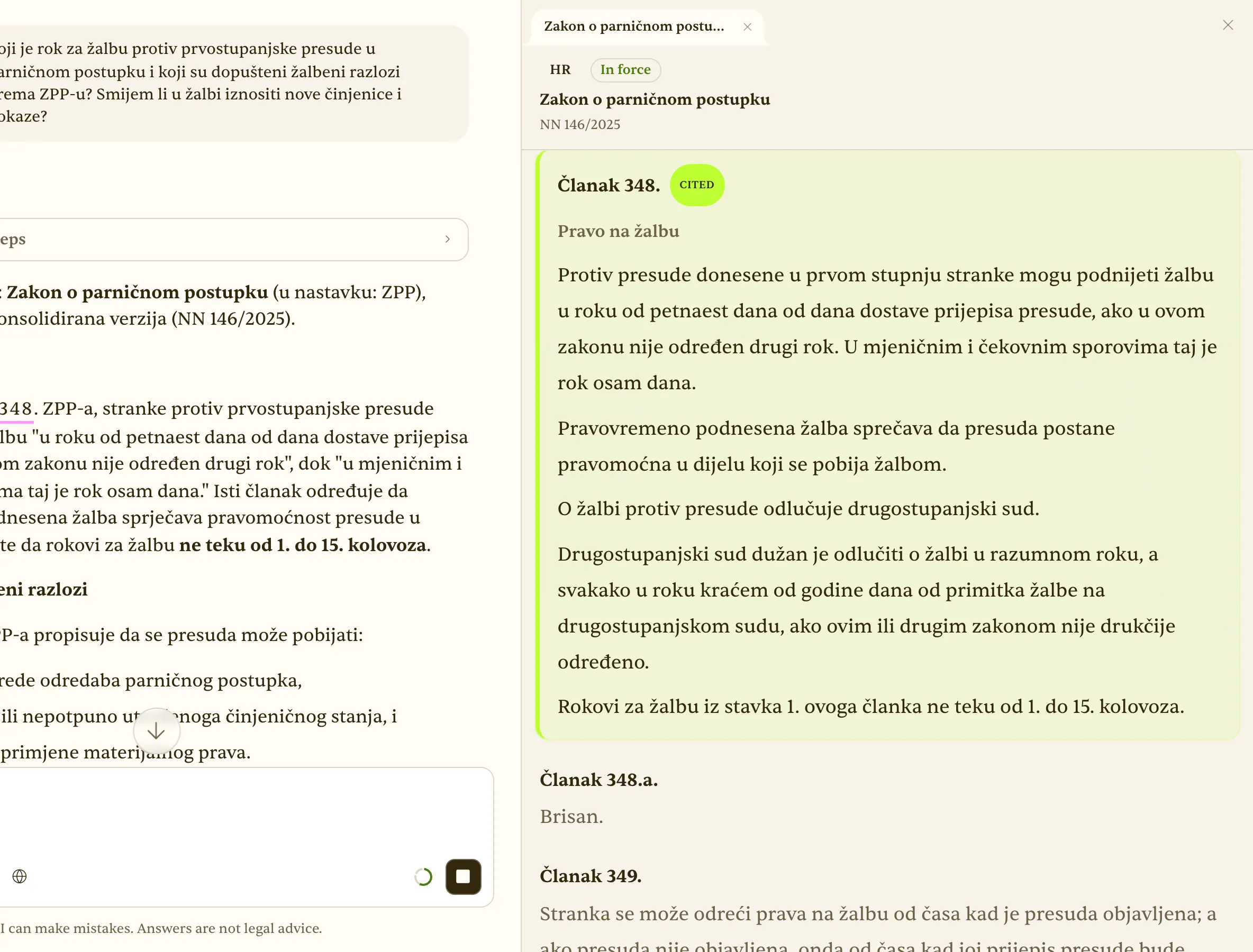 Citation panel open on the cited ZPP article
22. Amending the claim after the preparatory hearing
Who: Litigation lawyer. Situation: The client wants to change the claim after the preparatory hearing; is it allowed and under what conditions?
Amending the claim after the preparatory hearing depends on the defendant’s consent and the court’s assessment — a nuance even experienced lawyers get wrong. Eulex Desk answers from the Civil Procedure Act and case law: when the amendment is allowed without consent, when the court may allow it despite objection, and the consequences for the proceedings. Citations to articles and decisions let the position go straight into a submission.
Result: A clear answer on the admissibility of amending the claim, with conditions and cited case law.
Tips
- Describe the stage of proceedings precisely — the answer changes with it.
- Ask to ‘cite case law’ for Supreme Court and county court decisions.
- Check that the cited version of the Act is in force (badge in the citation panel).
See: /docs/assistant · /docs/legal-sources
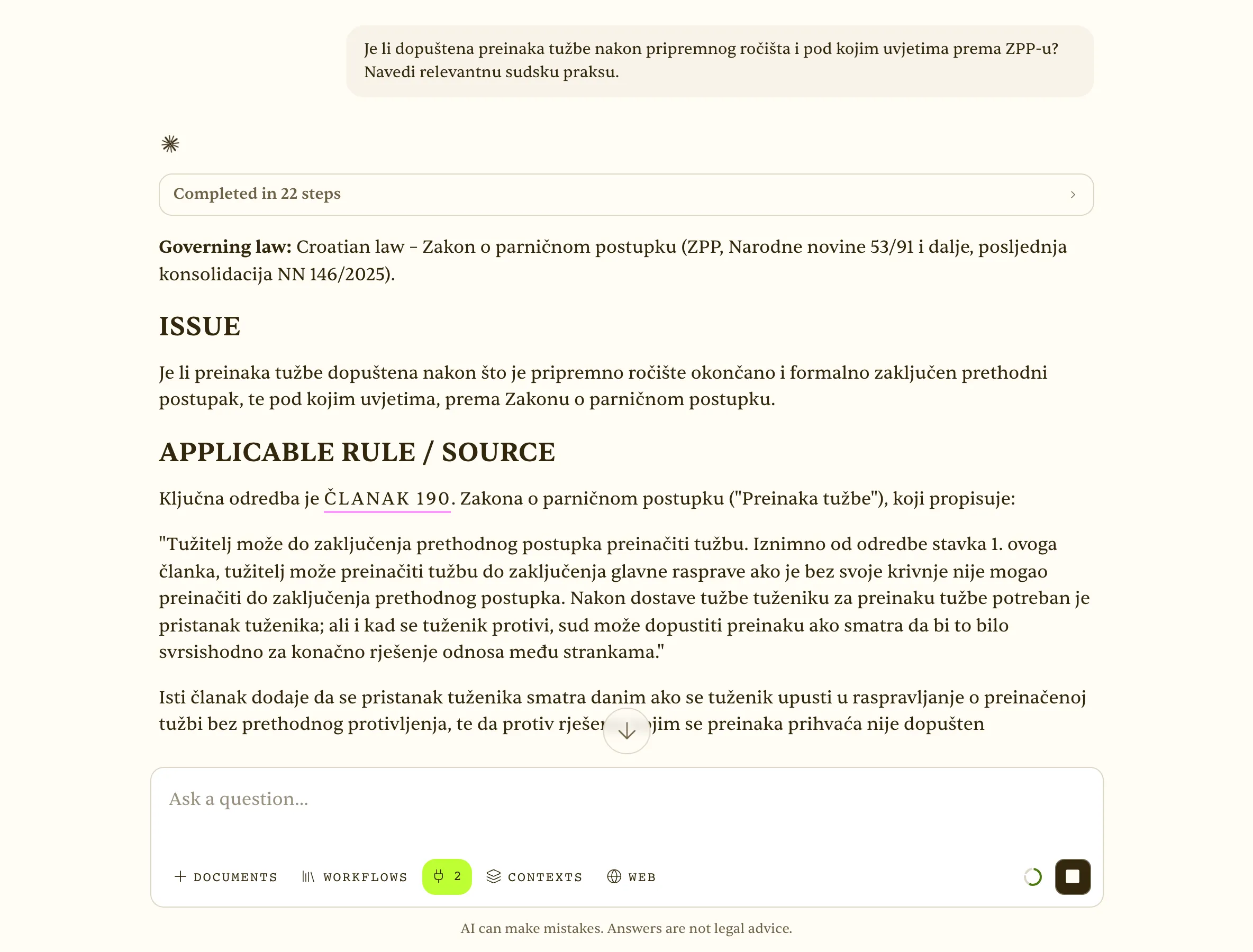 Answer on amending the claim after the preparatory hearing, with statute and case-law citations
23. Enforcement on a trustworthy document — motion and objection
Who: Debt-recovery lawyer. Situation: Unpaid invoices; need the enforcement motion and the debtor’s objection deadlines.
Debt recovery is a repeating routine: an enforcement motion on a trustworthy document, then the debtor’s objection deadlines. From a description of the claim Eulex Desk drafts the motion as .docx with the mandatory content under the Enforcement Act and, alongside it, a table of deadlines (objection, appeal, effects) cited per article. The draft opens in the editor for the client’s data.
Result: A draft motion + deadline table, cited to the Enforcement Act.
Tips
- State the type of document (invoice, ledger extract) — it affects the content.
- Also ask for ‘consequences of a timely objection’ for the full picture.
- Save the prompt as a workflow — the same pattern for every client.
See: /docs/assistant · /docs/documents
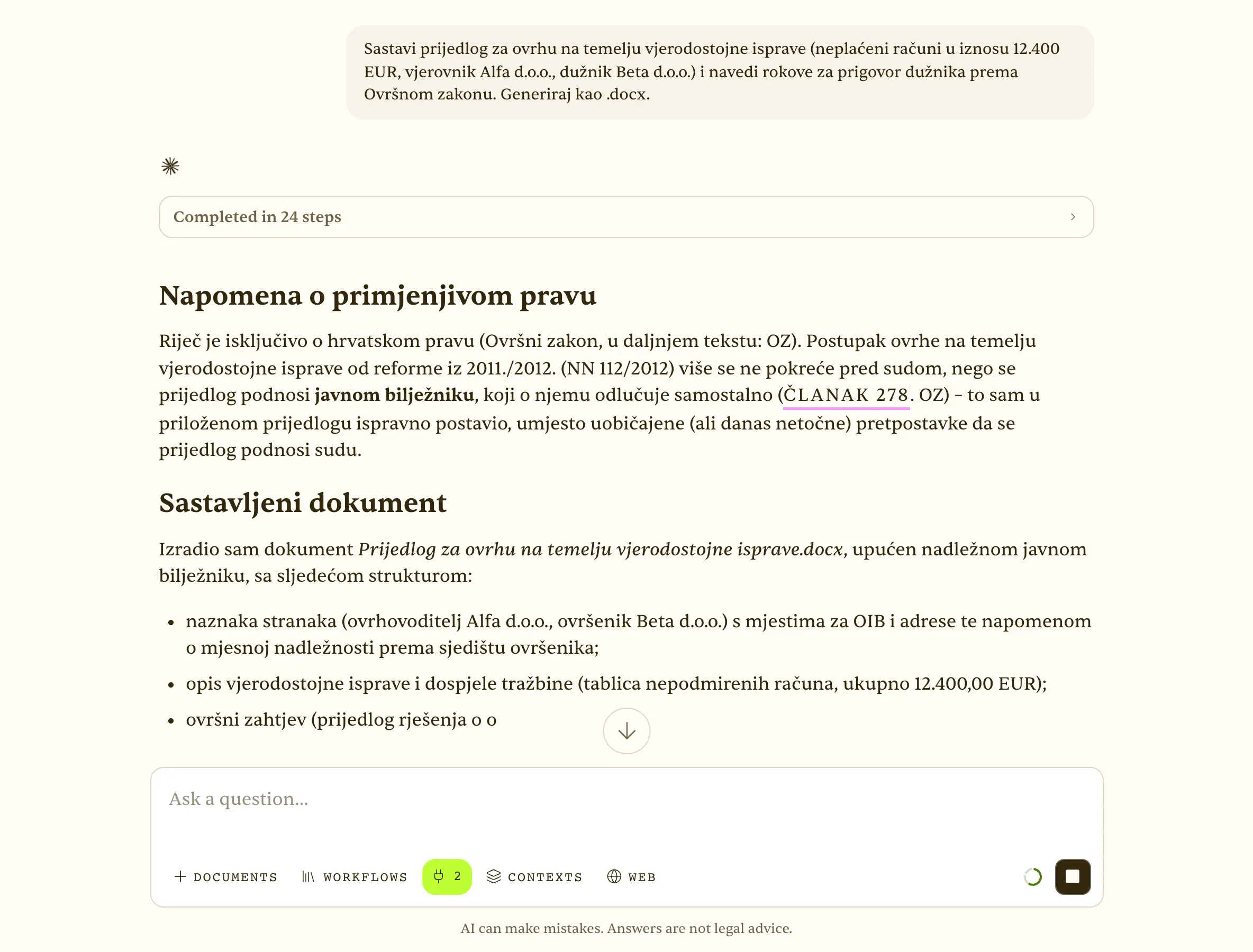 Draft enforcement motion generated as .docx with deadlines cited to the Enforcement Act
24. Criminal law — sentencing range and mitigating circumstances
Who: Criminal defence counsel. Situation: Needs the sentencing range for a specific offence, aggravated forms and what courts treat as mitigating.
Criminal law is the second most common topic among real users. Defence counsel needs, fast: the sentencing range for a specific offence, aggravated forms and what courts treat as mitigating. Eulex Desk searches the Criminal Code and case law and returns the range with the cited article, the aggravated forms and examples of mitigating circumstances from decisions. With the PII shield on, a case description containing personal data stays masked.
Result: The sentencing range cited to the Criminal Code with examples from case law.
Tips
- Describe the offence generically or enable the PII shield before entering client data.
- Ask for ‘sentencing practice’ for concrete examples.
- Check the cited Criminal Code version was in force on the date of the offence.
See: /docs/assistant · /docs/pii-shield
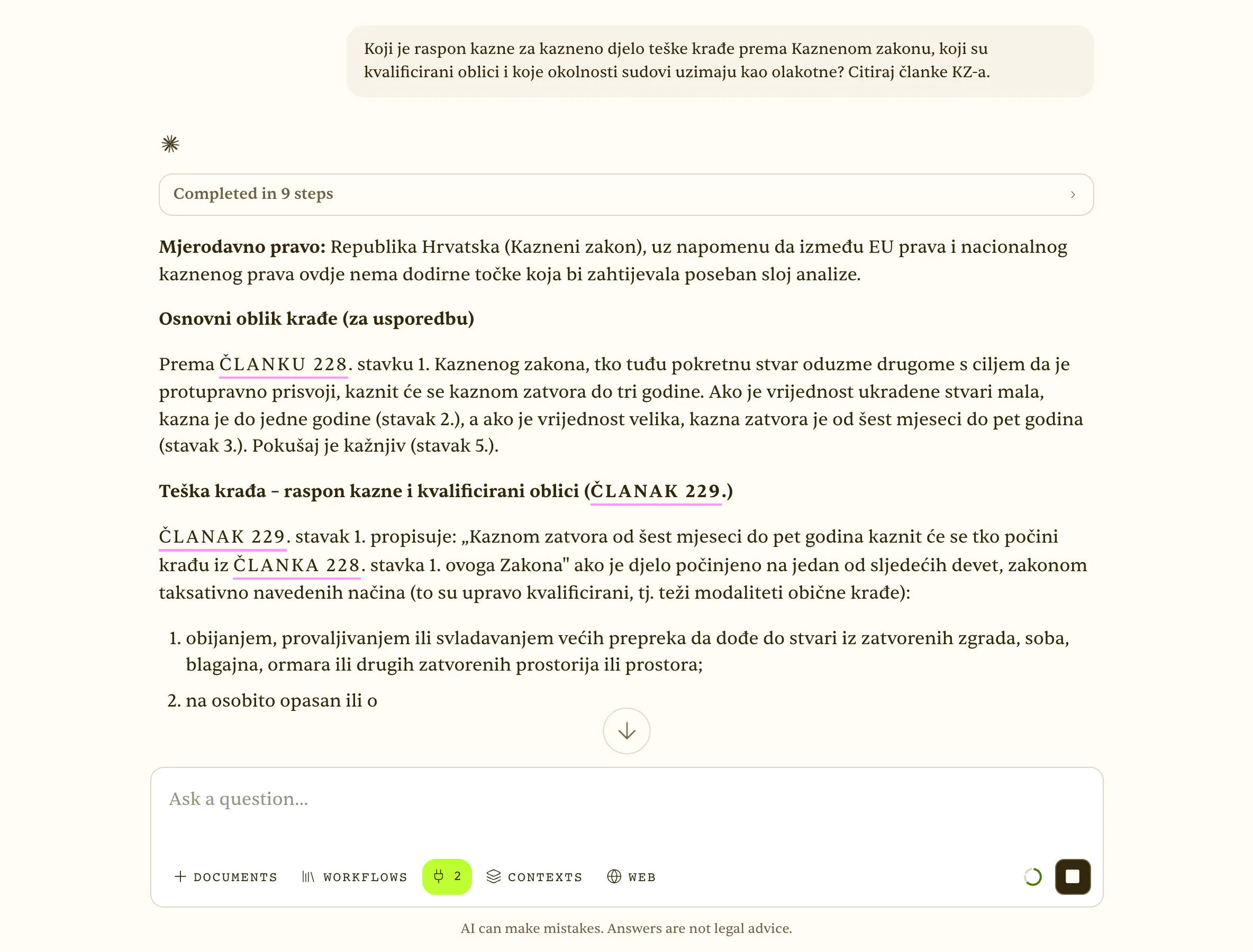 Sentencing range and mitigating circumstances cited to the Criminal Code
25. Inheritance — lifelong-support contract vs. marital property
Who: Family & inheritance lawyer. Situation: An estate where a lifelong-support contract collides with a marital-property claim.
Estates in which a lifelong-support contract collides with marital property are among users’ most common family-law questions. Eulex Desk analyses the attached contract against the Inheritance Act and the Family Act: whether the property forms part of the estate, how the surviving spouse’s marital share is treated, and the case law on contesting the contract. The answer cites both statutes and decisions, ready for the probate hearing.
Result: Analysis of the contract–estate relationship cited to the Inheritance Act and Family Act.
Tips
- Describe family relationships and dates — they are decisive for which rules apply.
- Attach the contract and the land-registry extract if you have it.
- Ask for ‘relevant decisions’ on contesting lifelong-support contracts.
See: /docs/assistant · /docs/documents
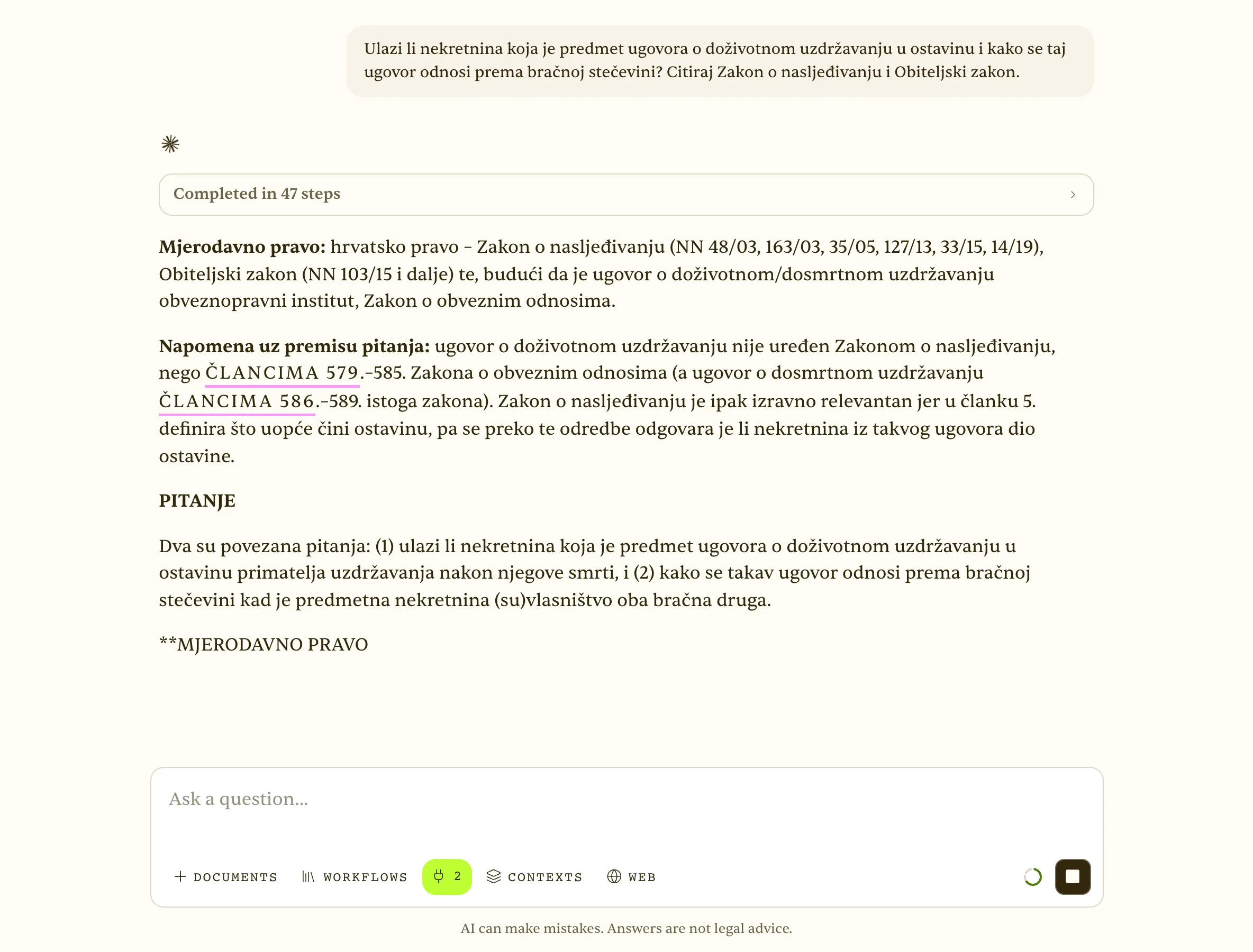 Inheritance analysis — lifelong-support contract vs. marital property, cited to two statutes
26. Real estate — building permit check and co-ownership
Who: Real-estate lawyer. Situation: A buyer wants to know whether the building is legal under the permit and zoning plan, and how to settle a co-ownership share.
Buying property means checking documentation: does the building permit match what was built, is the building compliant with the current zoning plan, and how to settle co-ownership. Eulex Desk combines attached documents (permit, land-registry extract) with statute search (Building Act, Ownership Act) and — with Web on — the current zoning plan on official sites. The result is a checklist and the steps for partition, cited per statute.
Result: Document check cited to the Building Act and Property Act, with steps for partition.
Tips
- Turn Web on for zoning plans — they are published on city and municipality sites.
- Attach the land-registry extract for encumbrances and co-ownership shares.
- Ask for a prioritised risk list for the client.
See: /docs/assistant · /docs/documents
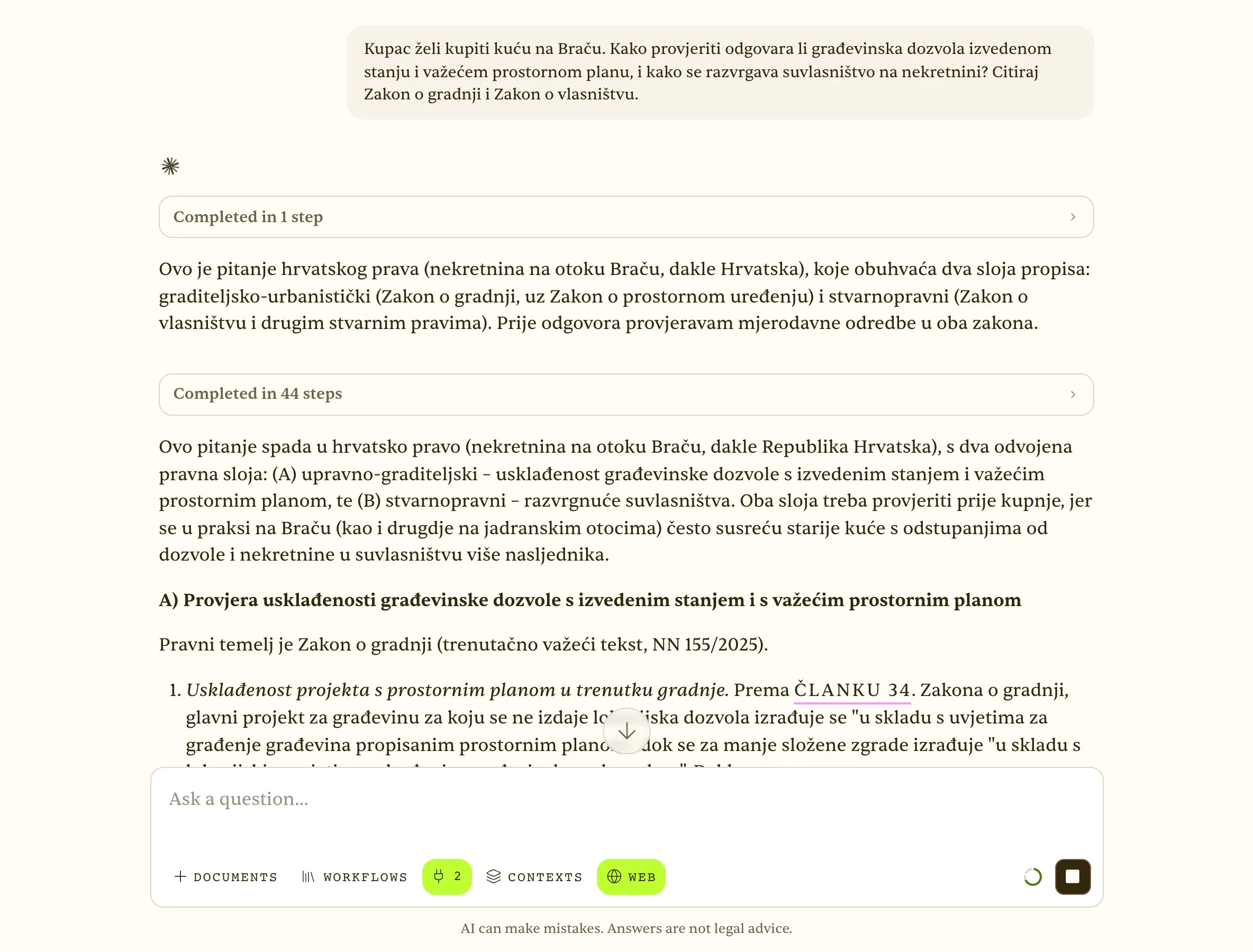 Real-estate check with Web search on — Building Act and Ownership Act cited
27. Administrative dispute — challenging a decision
Who: Administrative-law lawyer. Situation: A decision arrived (e.g. on boundary change); need the deadline, competent court and the content of the claim.
Administrative disputes (decisions on boundaries, permits, citizenship) are the fourth most common user topic. After service of the decision the deadline for the claim is short, jurisdiction depends on the type of act, and the claim has mandatory content under the Administrative Disputes Act. With the decision attached, Eulex Desk gives the deadline, the competent administrative court and the content of the claim with citations, and generates a draft claim as .docx for editing.
Result: Deadline, jurisdiction and mandatory content cited to the Administrative Disputes Act, plus a draft claim.
Tips
- State the date of service — the deadline runs from it.
- Attach the decision so the draft references specific points of the operative part.
- Ask about the suspensive effect of the claim and interim measures too.
See: /docs/assistant · /docs/documents
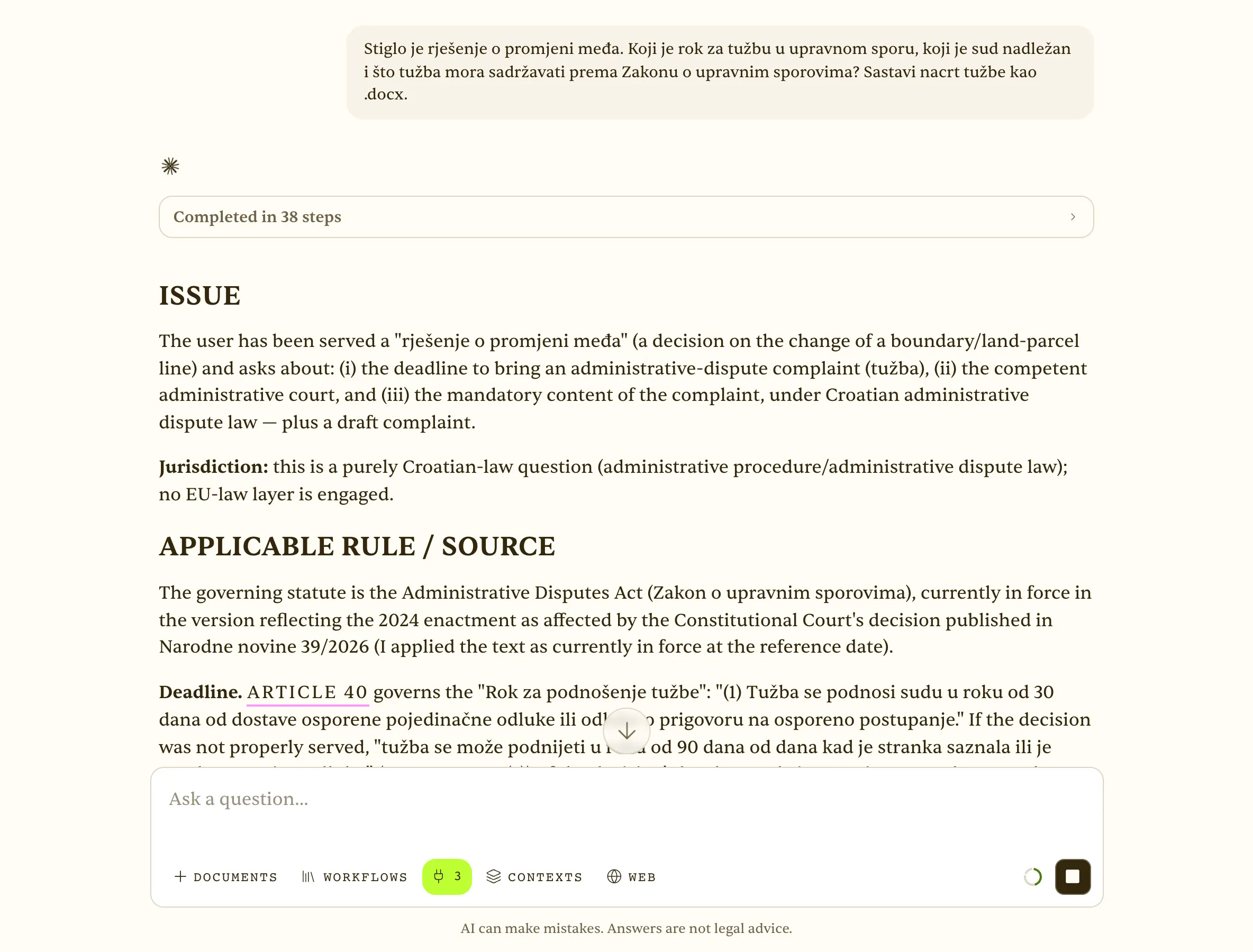 Administrative dispute — deadline, jurisdiction and draft claim (.docx) cited to ZUS
28. GDPR — scope of the right of access and response deadline
Who: DPO / compliance adviser. Situation: A data subject requests access; what must be provided, by when, and when can it be refused?
A data subject’s access request (Art. 15 GDPR) has a one-month deadline, a scope that often surprises, and narrow refusal grounds. With EU legislation enabled, Eulex Desk gives a structured answer: what must be provided, in what form, when the deadline may be extended and when a request is manifestly unfounded or excessive — with GDPR citations (CELEX) and EDPB Guidelines 01/2022 read from the source. The answer is ready for the DPO’s internal procedure.
Result: A structured answer cited to the GDPR and guidelines, ready for an internal procedure.
Tips
- Ask explicitly to ‘include EDPB guidelines’ — Eulex reads them from edpb.europa.eu.
- Ask for a response template to the data subject as .docx.
- Save as a workflow for recurring DSARs.
See: /docs/assistant · /docs/legal-sources
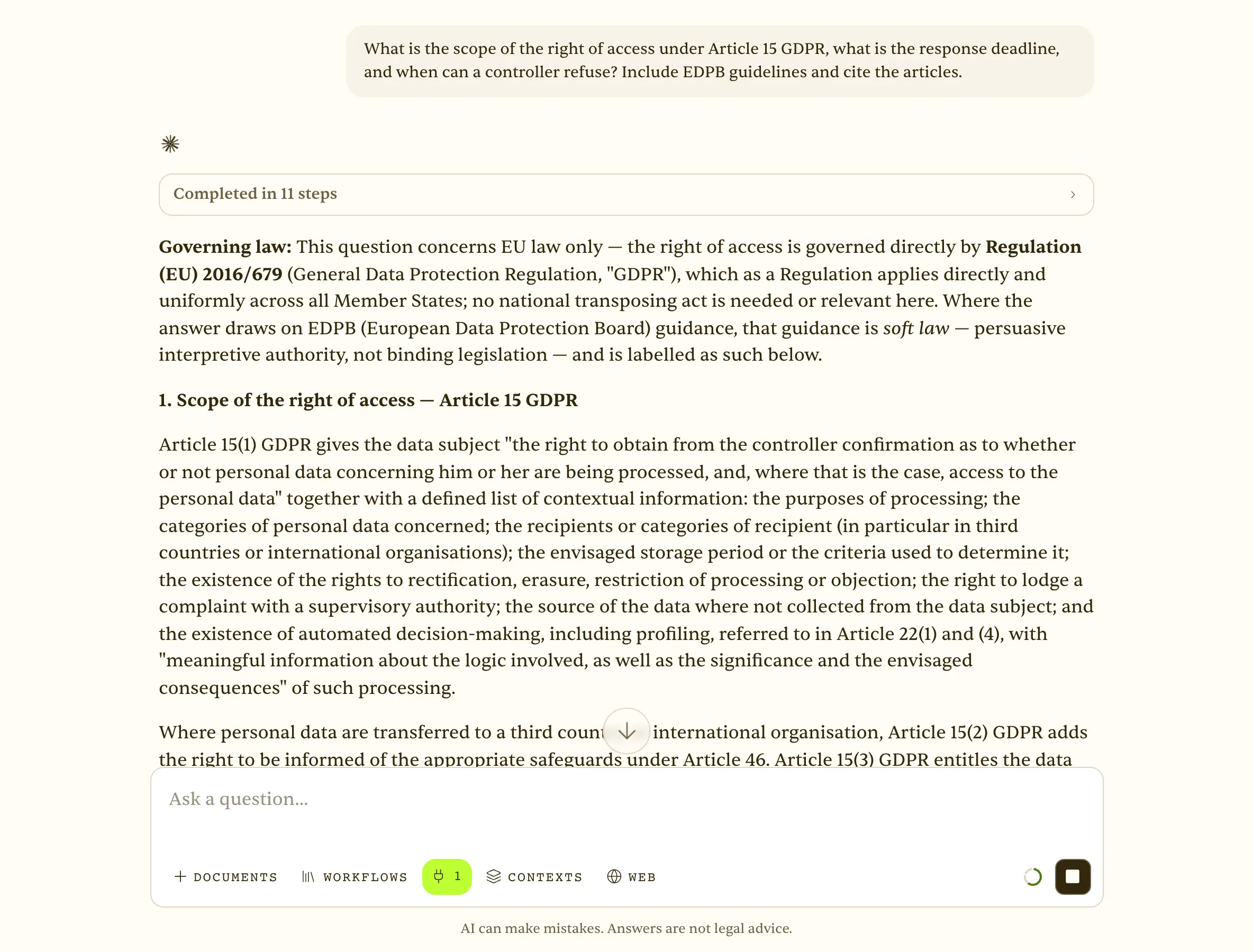 GDPR right of access — scope, deadline and refusal grounds cited to the Regulation (CELEX links)
Contexts
2. A practice-area Context — saved sources and instructions
Who: Head of the employment-law practice. Situation: The team keeps asking employment-law questions and repeating the same instructions and sources every time.
A Context is a saved bundle of sources and instructions that is applied to every question while active. For a practice that keeps asking the same kind of question — employment law, GDPR, public procurement — it means the statutes, guidelines, internal templates and answering rules are defined once instead of repeated in every chat. Contexts can be shared with colleagues, and individual sources can carry ‘Alert me when a source changes’, so the team learns when a regulation is amended. The difference from the composer’s ‘Context’ switch: that one chooses where to search (HR/EU/FR corpora); Contexts define how to answer and with which extra sources.
Result: The whole team gets consistent, cited answers without re-typing instructions.
Tips
- Put tone, structure and mandatory citation in Instructions — it is what teams repeat most.
- Pin the key statute (‘always in view’) so it is in context even when the question does not name it.
- One context per practice area; too many sources dilute answers.
See: /docs/contexts
Screencast (18 s): Contexts — a bundle of sources and instructions applied to every turn; editor with sources, instructions and alerts
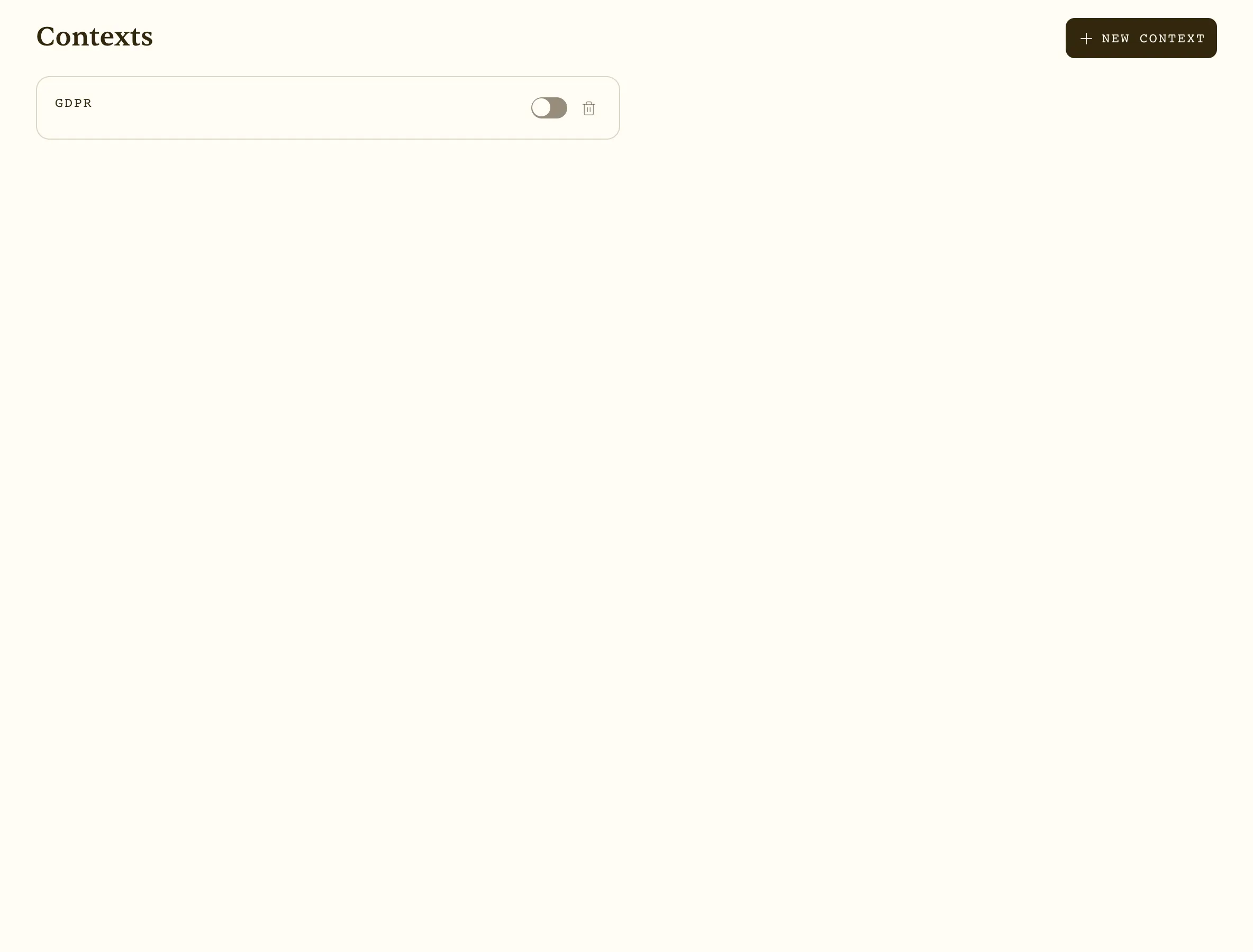 Contexts page — reusable source + instruction bundles with an on/off toggle
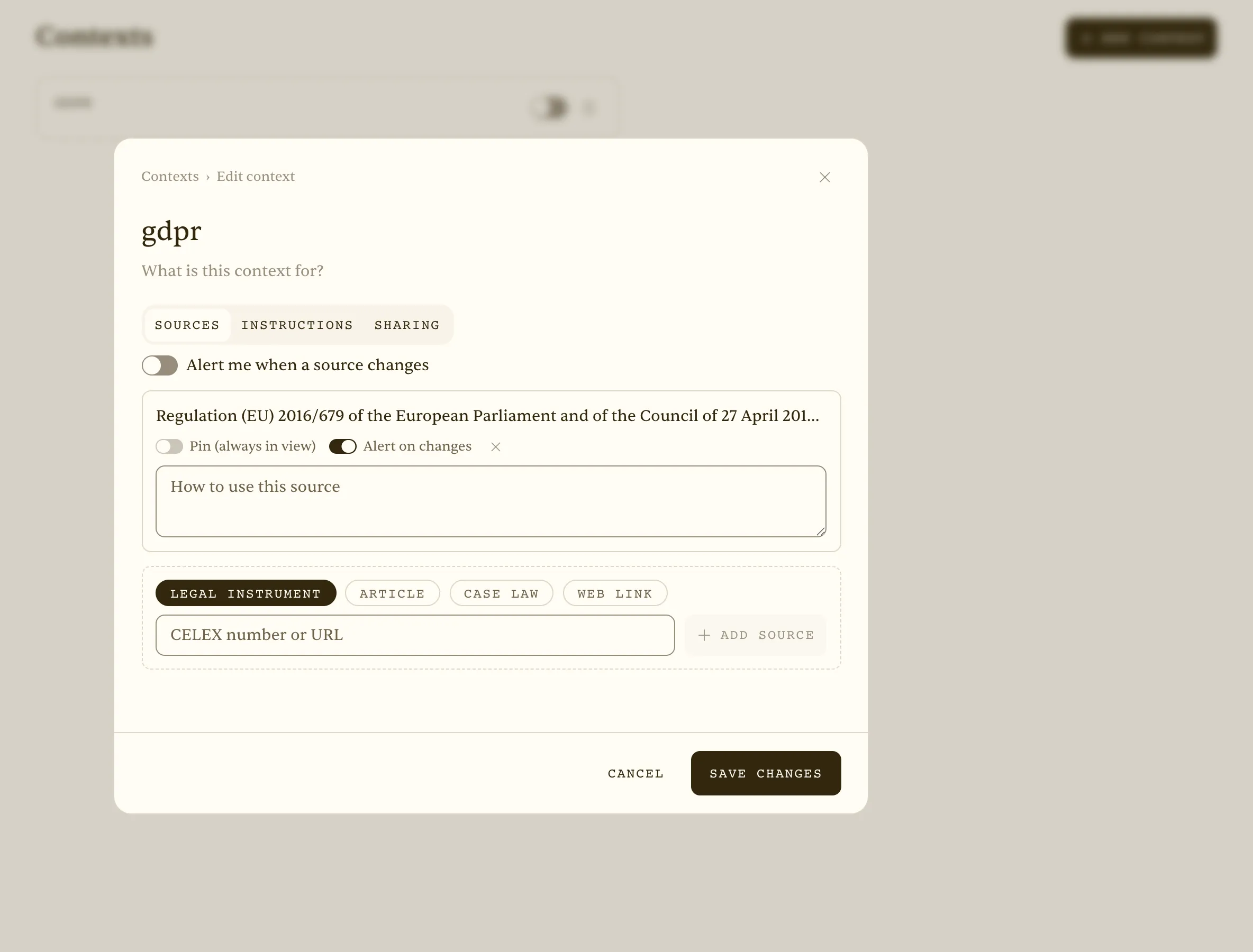 Editing a context — sources and instructions applied to every turn while active
29. Regulation change tracking — get alerted when the GDPR (or any EU act) changes
Who: Compliance officer / DPO. Situation: An internal procedure relies on a dozen EU acts; you need to know when a new consolidated version or amendment appears, without checking EUR-Lex by hand.
A compliance function depends on regulation coming to it, not the other way round. In a Context, EU acts (e.g. GDPR 32016R0679, NIS2, the AI Act) are added as sources, Alerts are switched on for the context and each source carries ‘track changes’. The Eulex database scans EUR-Lex daily; when a tracked act gets a new consolidated version or an amendment, the contexts service matches the change against every context tracking that act, the context editor shows an Alerts tab with the change type and date, and the context owner receives a daily hr/en e-mail digest linking to the context. No manual EUR-Lex checks and no newsletter subscriptions — the change arrives where the team already works.
Result: The team learns about the change the same day, with a link to the context; the procedure is updated on time.
Tips
- Add the act as a bare CELEX (32016R0679) — tracking works at instrument level, so it also covers the articles you cite.
- One context per regulatory area (privacy, AI, finance) keeps the digest readable.
- After an alert, ask in the same context: ‘What changed in Art. X versus the previous version?’
See: /docs/contexts
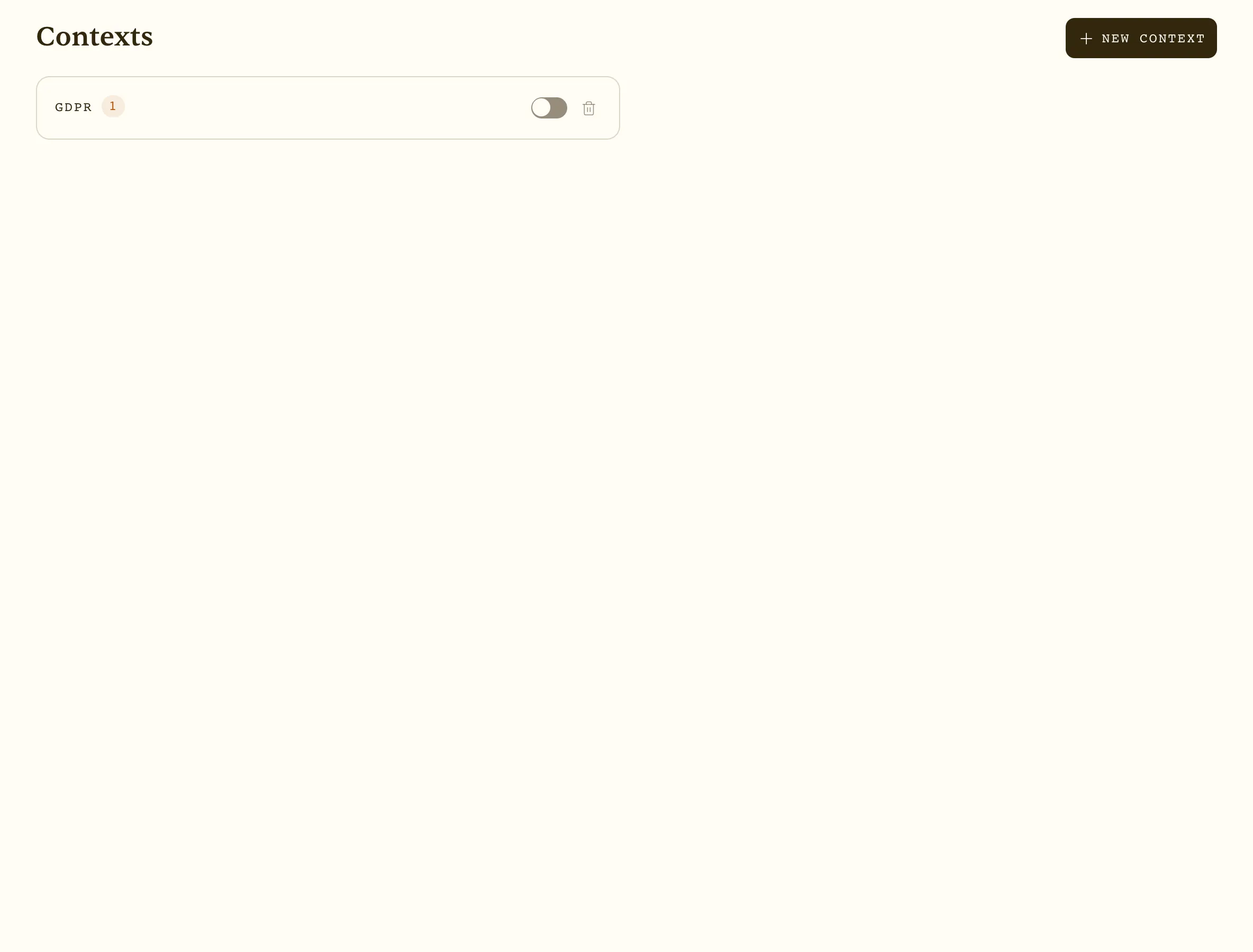 Contexts list — the ‘gdpr’ context with alerts switched on
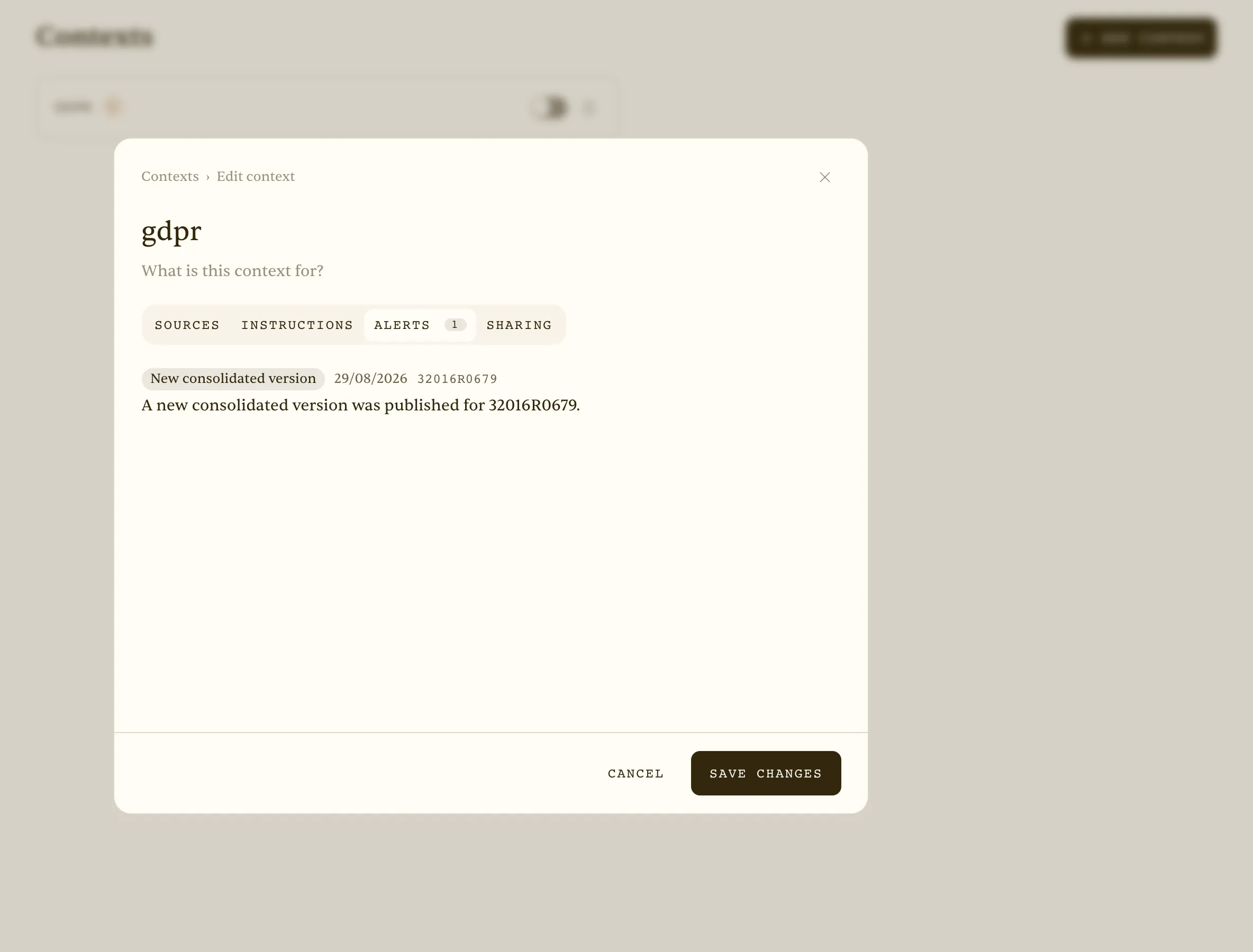 Context editor → Alerts tab — a new consolidated version of 32016R0679 (GDPR) was detected
Word add-in
10. Redlining the counterparty’s draft in Word
Who: Lawyer in negotiations. Situation: The counterparty sent a draft; it needs adjusting in the client’s favour.
Redlining happens in Word, not in a browser. The Word add-in brings Eulex Desk into the document’s task pane: select the disputed clause, send it as ‘Selection’ with an instruction, and in ‘Tracked changes’ mode the proposal is applied directly as a tracked change — you accept or reject like any other edit. The add-in pairs with a one-time code from Settings → Word and is available on the Pro plan.
Result: The proposal lands as a tracked change in the document; you accept or reject.
Tips
- Phrase instructions as a goal (‘cap liability at the contract value’), not as text.
- Work clause by clause — shorter selections give more precise edits.
- Pairing takes a minute; the code expires, so generate it while in Word.
See: /docs/word-add-in
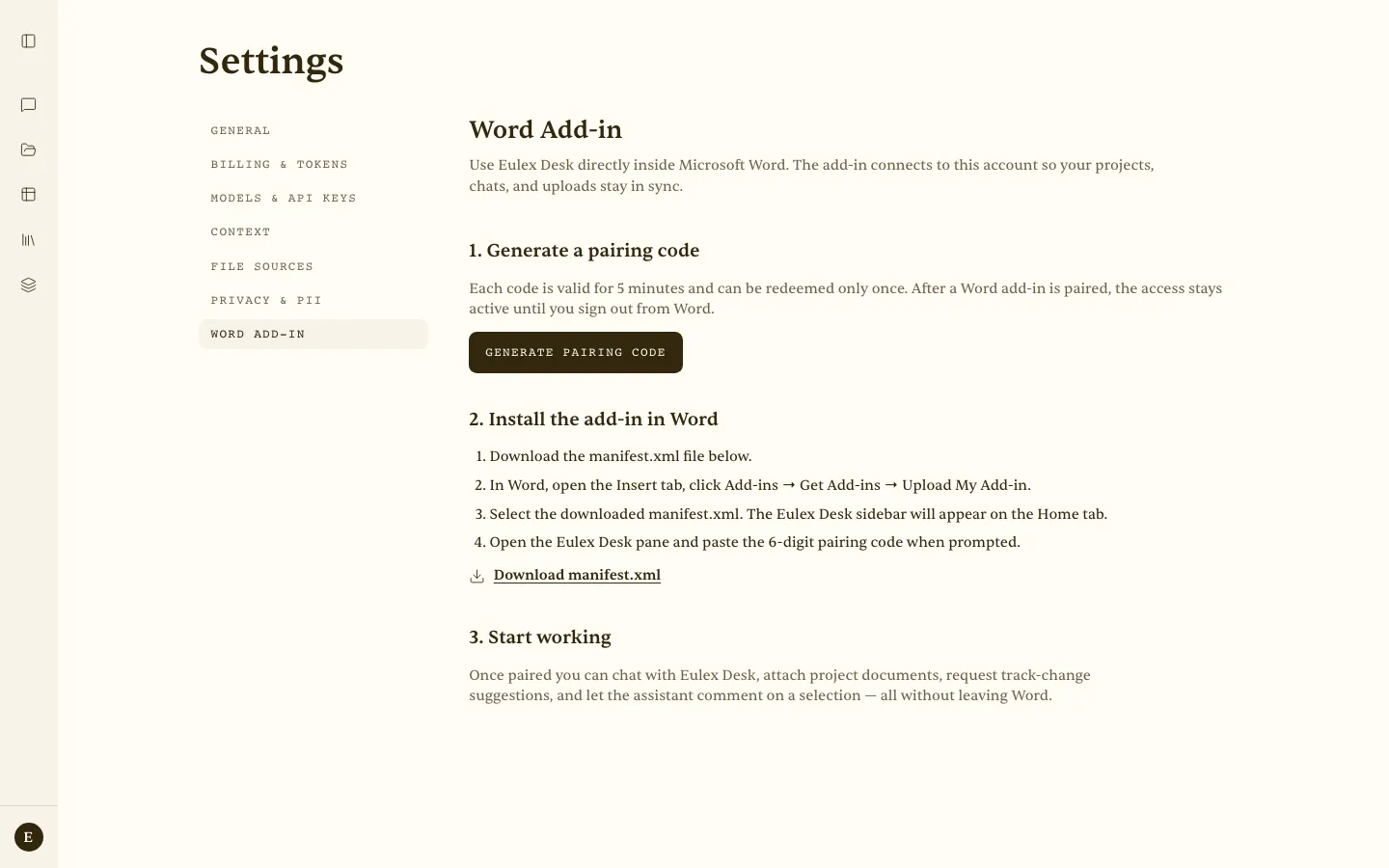 Account → Word add-in settings (pairing, manifest)
11. Comments and change explanations in Word
Who: Senior reviewing a junior’s draft. Situation: Wants to explain why something should change instead of changing it.
In internal review the goal is not to change the text but to explain why it should change. In ‘Comments’ mode the Word add-in generates the risk reasoning and direction of change as a comment anchored to the selected text. The junior gets a mentoring note in the document itself, the senior saves time, and the decision history stays in Word.
Result: Reasoned comments in the document — ideal for internal review.
Tips
- Ask to ‘explain the risk and suggest a direction’ — a comment, not a finished wording.
- Combine with tracked changes: comment for reasoning, edit for text.
- Comments are ideal for documents someone else will sign off.
See: /docs/word-add-in
12. Writing a client letter in Word
Who: Lawyer. Situation: Needs a concise client letter based on the document open in Word.
After reviewing a contract the client needs a letter summarising the risks in lay terms. In the Word add-in you attach the currently open document and ask for the letter; Eulex Desk drafts it from the contract’s actual content and inserts the text straight into Word. The whole flow — review, comments, letter — stays in one tool.
Result: A letter draft grounded in the document, without leaving Word.
Tips
- State the audience (‘a director, not a lawyer’) and length.
- Ask for a structure: risk → consequence → recommendation.
- Enable the PII shield if the document contains third-party personal data.
See: /docs/word-add-in
Projects
13. Due diligence — a matter with 40 contracts
Who: Transaction team. Situation: An acquisition; a data room of ~40 contracts needs a fast risk pass.
A project is a workspace tied to one matter: document folders, an Assistant that sees the whole data room, tabular reviews and the people with access. In an acquisition with dozens of contracts, ‘which contracts contain a change-of-control clause’ is answered across every document in the matter, cited per contract. Everything that happens in the project — chats, versions, reviews — stays with it, so context is not lost between sessions and colleagues.
Result: An answer across the whole matter, cited per contract.
Tips
- Organise subfolders by contract type before the first question — answers get sharper.
- Use the Assistant inside the project, not the global one — it sees every document.
- Enter the CM number (file reference) to link with your practice-management system.
See: /docs/projects · /docs/assistant
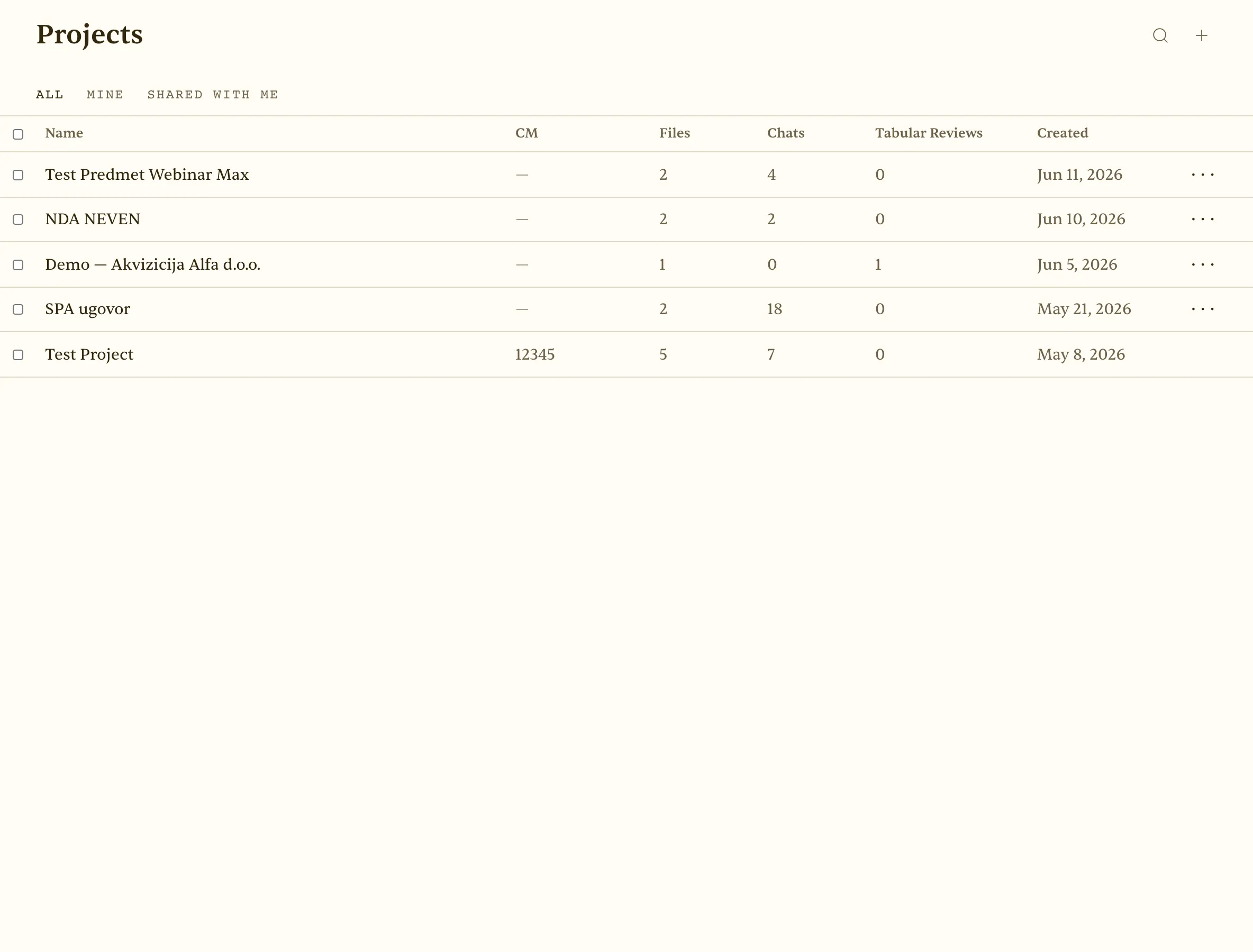 Projects list — matters with file, chat and review counts
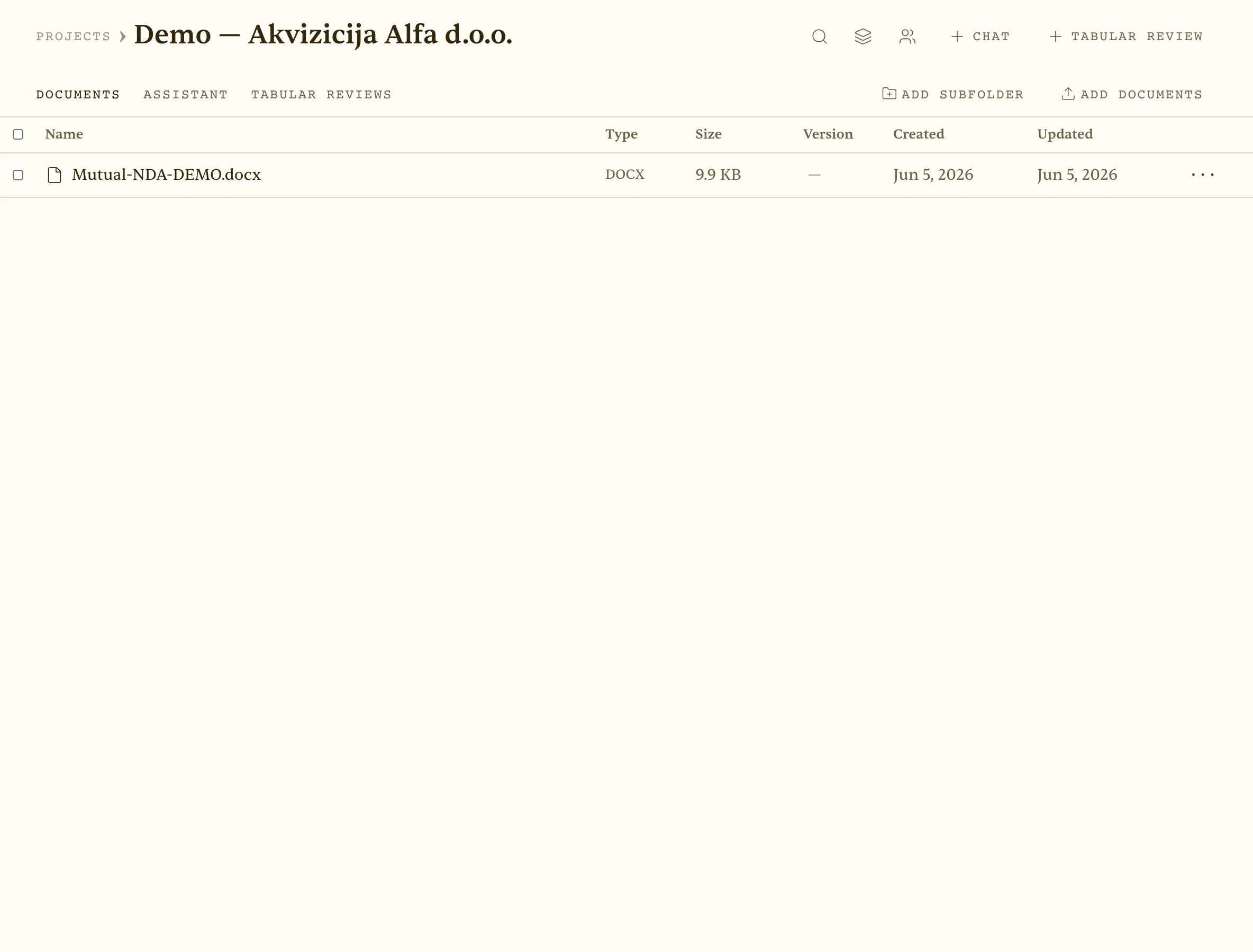 Inside a matter — documents, project assistant and tabular reviews in one workspace
14. Organising a matter and sharing it with the team
Who: Matter lead. Situation: Several colleagues work on the same matter.
Several colleagues on the same matter must not mean five copies of the documents and five parallel chats. The ‘People with access’ dialog in a project invites colleagues by email or link; everyone sees the same documents, subfolders, versions and reviews. The owner keeps access control, and sharing is recorded in the project’s history.
Result: A shared workspace with persistent context and access control.
Tips
- Invite by email when the colleague should be notified; use the link for quick sharing inside the office.
- Assign one person to own the folder structure.
- Share the project, not individual documents — reviews travel with it.
See: /docs/projects · /docs/sharing
Tabular review
15. Reviewing a portfolio of 60 lease agreements
Who: In-house head of legal. Situation: Before the annual report, 60 leases need reviewing on key terms.
Tabular review is the tool for questions repeated across many documents. Upload 60 lease agreements, define question columns (parties, term, termination, indexation, change of control), press Run — and every cell fills in parallel, with a citation (page and verbatim passage) from the corresponding contract. The result is a 60×8 table that would take a week by hand, ready for a board report or Excel export.
Result: A filled 60×8 table with citations — an hour instead of a week.
Tips
- Start from a template (e.g. Commercial Lease Review), then add your own columns.
- Define the column format (Yes/No, date, amount) — the table becomes sortable.
- Run on 3 documents first to validate the questions, then on the full set.
See: /docs/analyses
Screencast (17 s): Tabular review — one row per document, one column per question; clicking a cell opens the verbatim citation
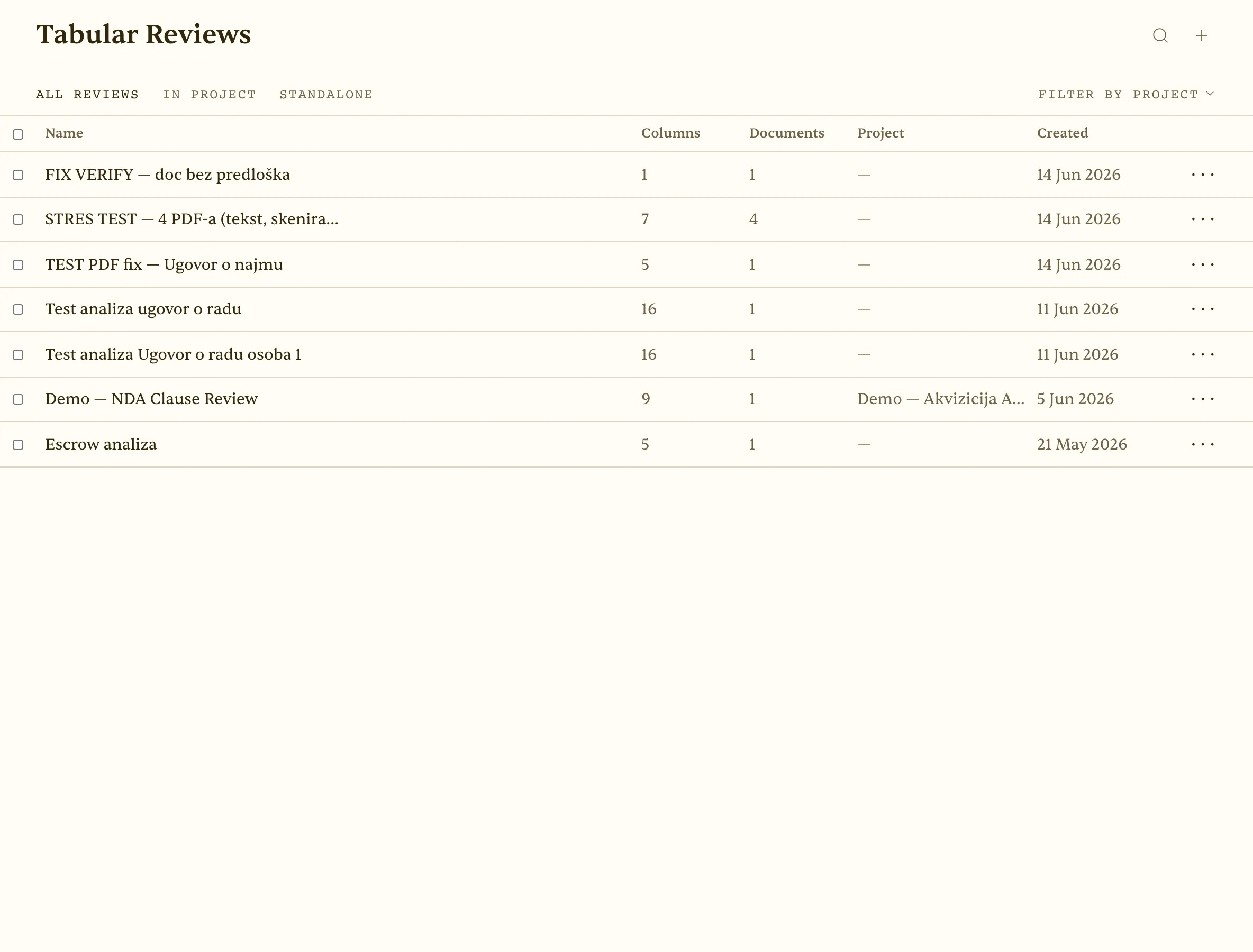 Tabular reviews list — columns, documents and project per review
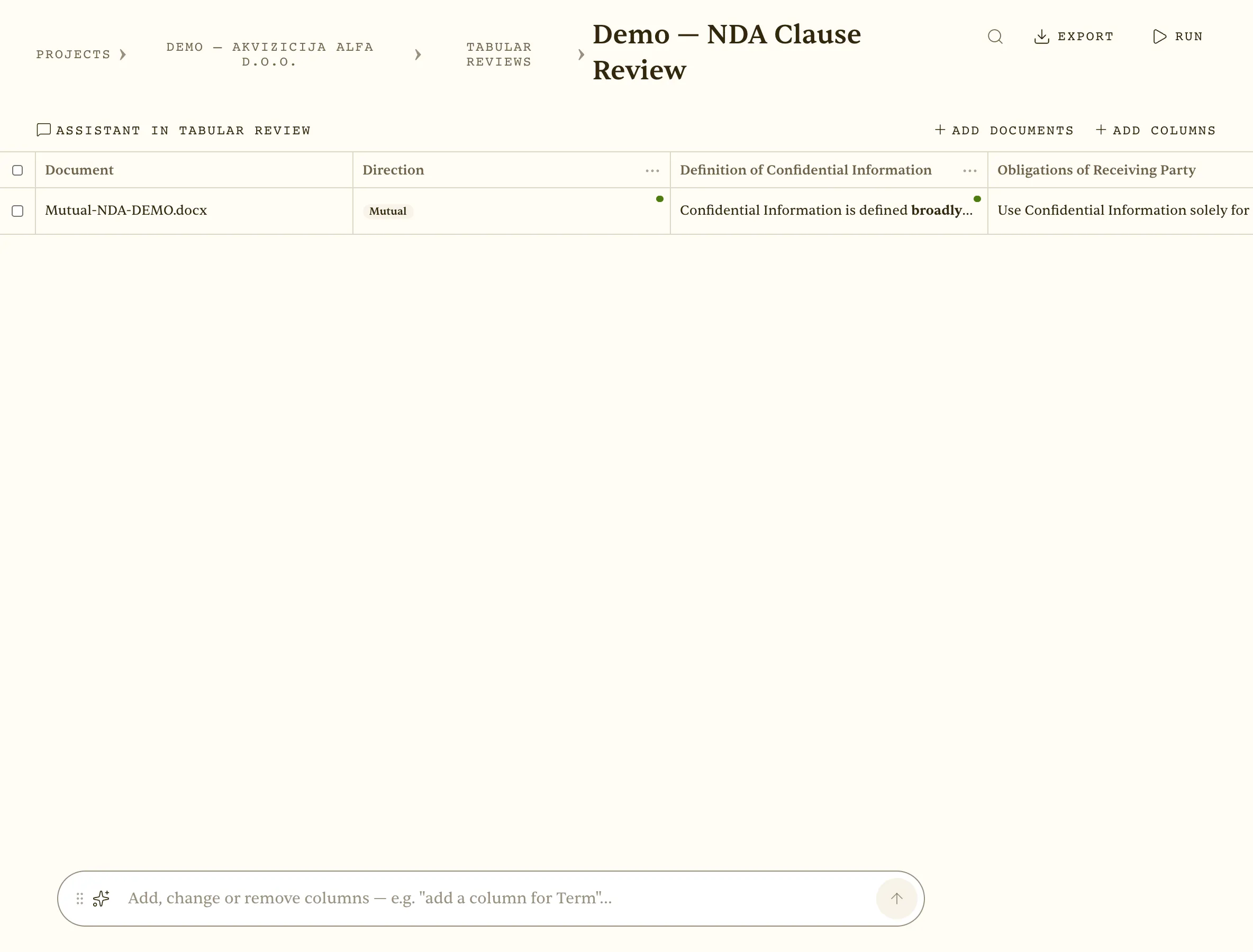 A completed tabular review — one row per document, one column per question, every cell cited
16. Extracting key terms from a pile of NDAs
Who: In-house standard-contracts team. Situation: Dozens of NDAs; key terms need pulling into a table.
Dozens of NDAs with different wording for the same concepts — a typical in-house task. In the ‘New review’ dialog you pick a template (NDA Review) or start from scratch, upload documents and add columns: parties, governing law, term, definition of confidential information, penalty. For a custom column it is enough to describe the question — ‘auto-generate prompt’ writes the query the AI then applies consistently to every document.
Result: A standardised comparison of terms across all NDAs.
Tips
- The NDA Review template already has 9 standard columns — saves 15 minutes.
- Enable ‘Create under a project’ if the NDAs belong to one matter.
- Add a ‘Deviates from standard (Yes/No)’ column for quick filtering.
See: /docs/analyses
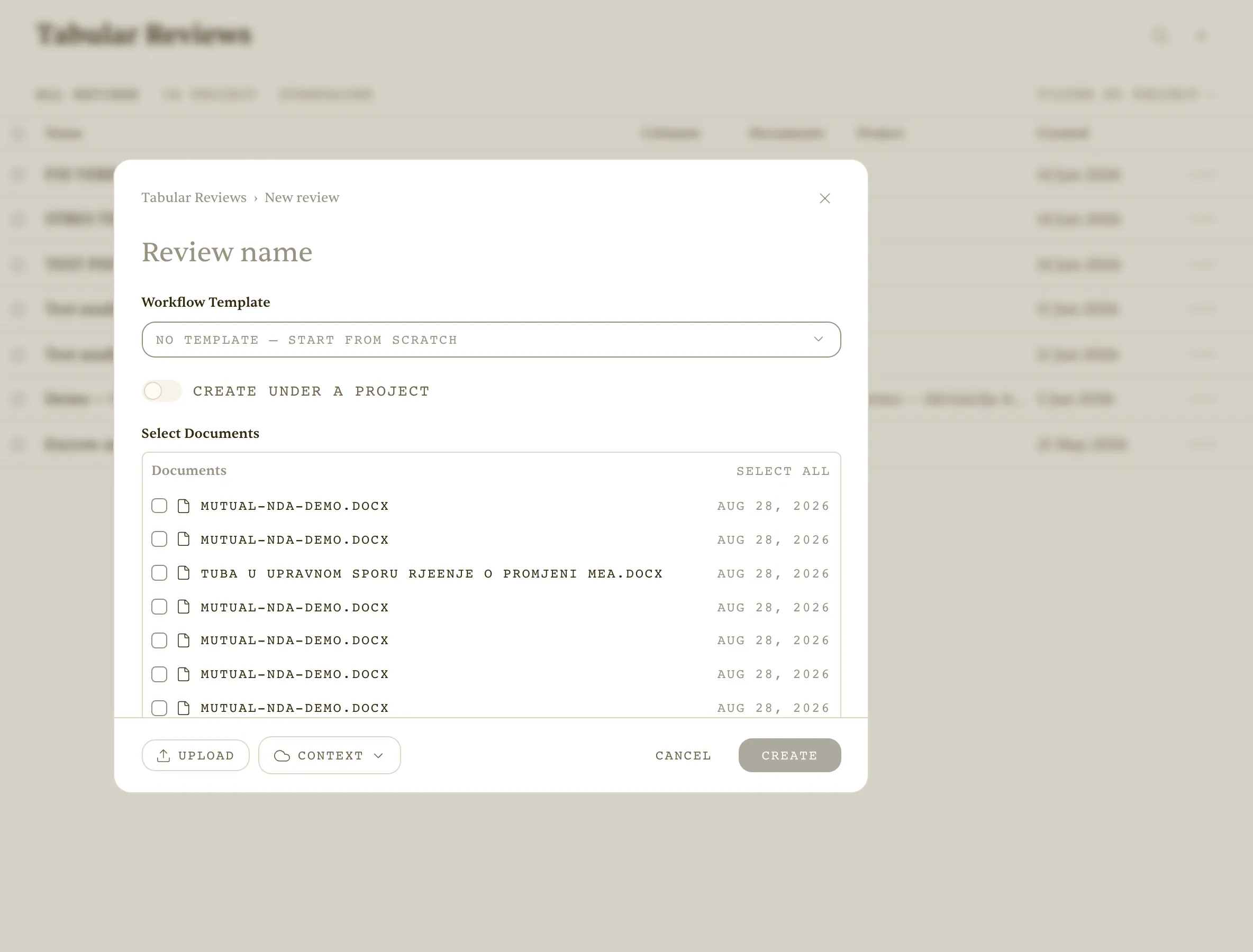 New tabular review — pick a template, add documents, define question columns
17. Change of control across a portfolio + risk filtering
Who: M&A team. Situation: Needs to see quickly which contracts have a change-of-control clause and how risky they are.
In M&A the question is not whether a change-of-control clause exists but how dangerous it is. A ‘Change of control’ column returns Yes/No with reasoning, and clicking a cell opens the detail: the verbatim quote from the contract, numbered sources and the reasoning behind the conclusion. Risky cells are flagged, so the team focuses on the dozen contracts that need a decision rather than the whole portfolio.
Result: Risky contracts visible at a glance — focus on what needs a decision.
Tips
- Phrase the column as a question with a criterion (‘is the other party’s consent required?’).
- Add a risk-rating column (low/medium/high) for sorting.
- Verify the citation under ‘See details’ before a cell goes into a report.
See: /docs/analyses
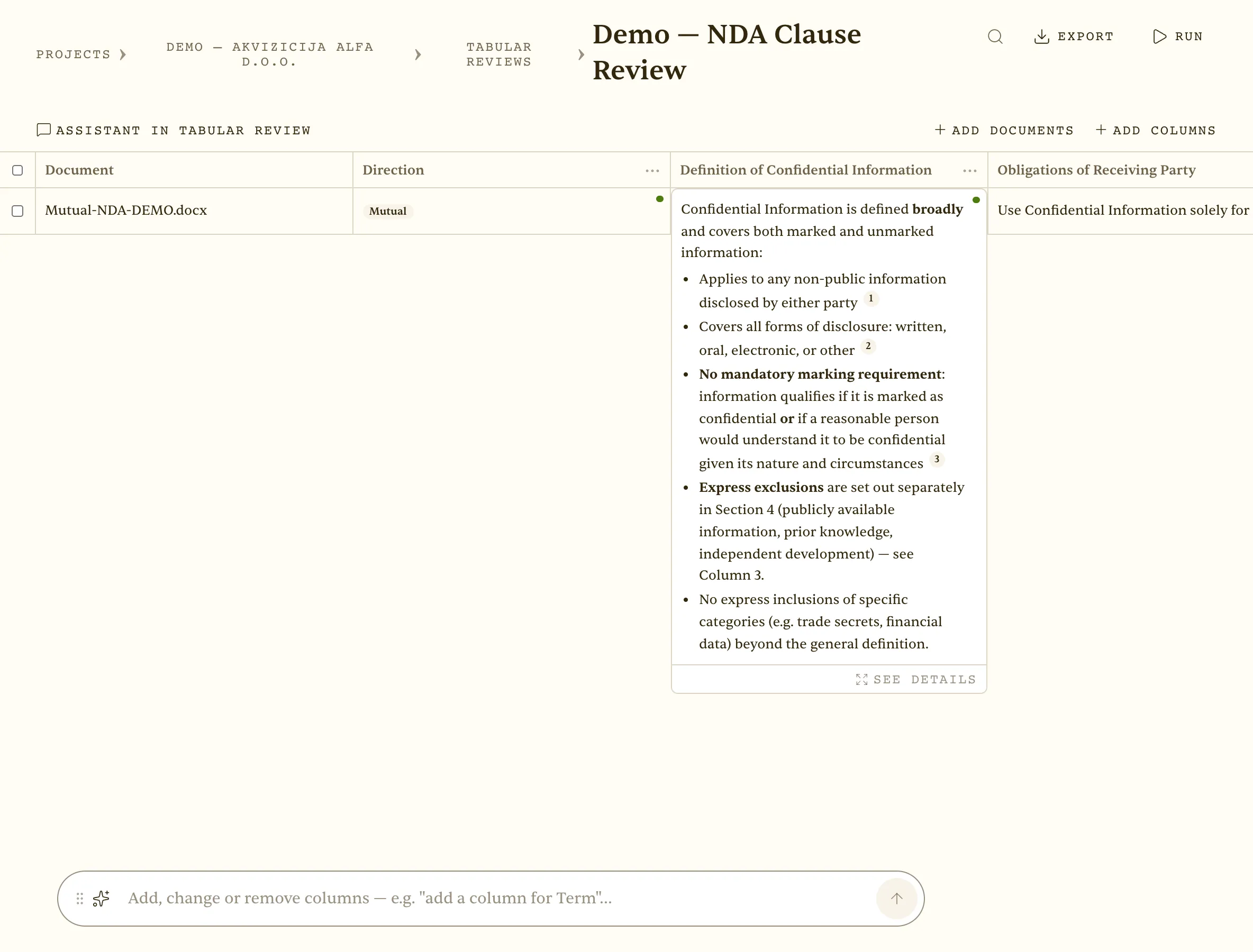 Cell detail — the verbatim citation and reasoning behind one extracted answer
18. Excel export and questions over the whole table
Who: Manager reporting to the board. Situation: Results are needed in Excel plus a follow-up question over the whole set.
Review results must end up in Excel for the board and must be queryable further. The Export button downloads the whole table with citations, and ‘Assistant in tabular review’ opens a chat over the entire set: ‘How many contracts expire in the next 12 months?’ — the answer is cited back to the table’s cells. One review thus serves both as a report and as a base for quick questions.
Result: An Excel for the board + fast answers over the entire portfolio.
Tips
- Export after checking disputed cells — Excel does not track later changes.
- Phrase table questions with numbers and dates — you get counted answers.
- For recurring reports save the columns as a workflow.
See: /docs/analyses
Export the review table to Excel
Workflows
19. Workflow ‘Generate CP checklist’
Who: Junior on a financing closing. Situation: Conditions precedent need extracting from a credit agreement.
A workflow is a saved task template: a prompt (for the Assistant) or a set of columns (for a review), tagged by practice area. The built-in ‘Generate CP Checklist’ extracts conditions precedent from a credit agreement with statuses and citations — no walking through 60 pages by hand. Custom workflows come from successful chats or a description, are AI-refined on request, shared with the team and filtered by type and practice.
Result: A clean CP list without walking through 60 pages by hand.
Tips
- Use built-in workflows as a starting point and clone them for your standards.
- Attach a context to a workflow — sources and instructions travel together.
- Tag the practice (Finance, Corporate…) for team-wide filtering.
See: /docs/workflows
Screencast (13 s): Workflows — built-in and custom templates; opening the ‘Generate CP Checklist’ template
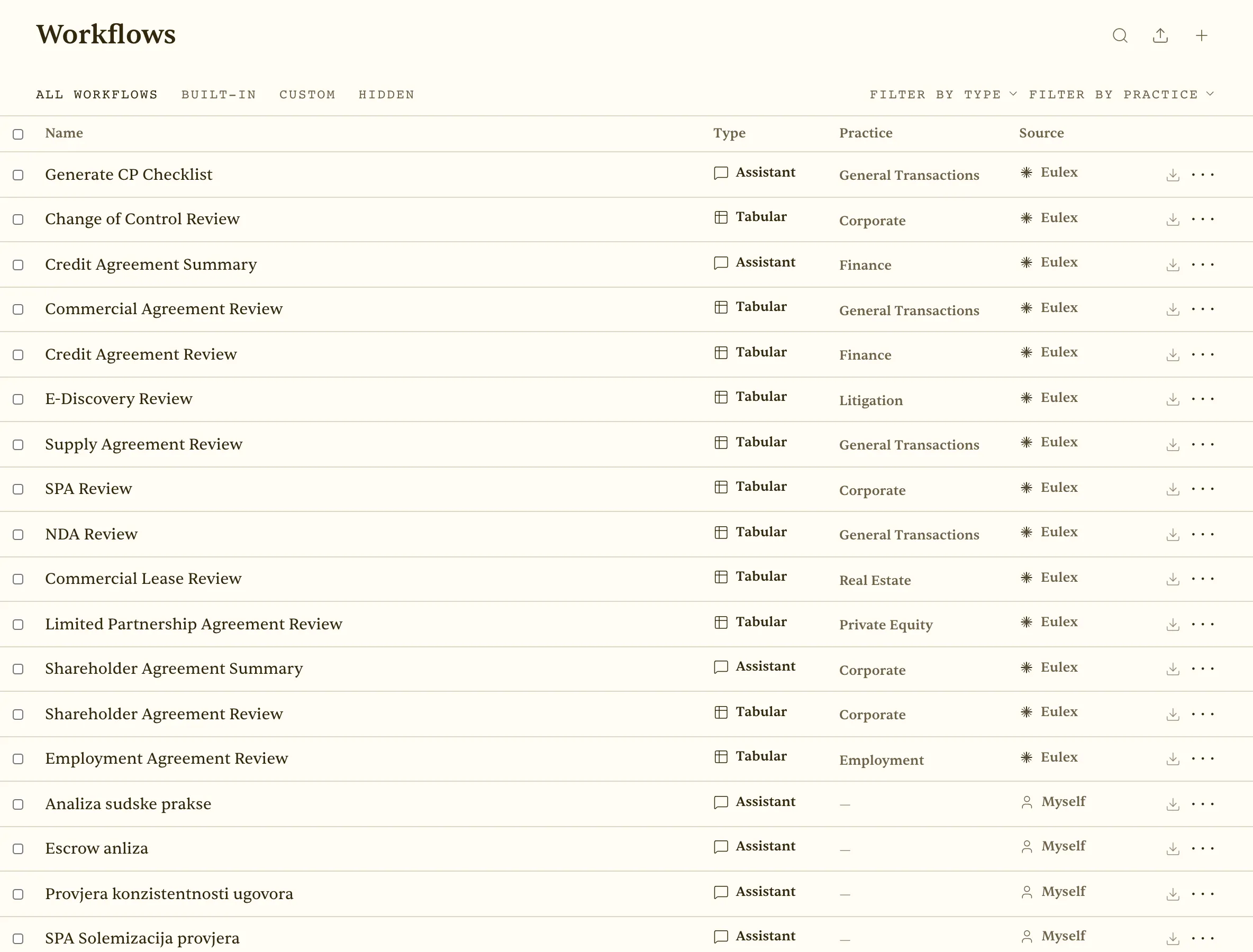 Workflows — built-in and custom templates by type and practice area
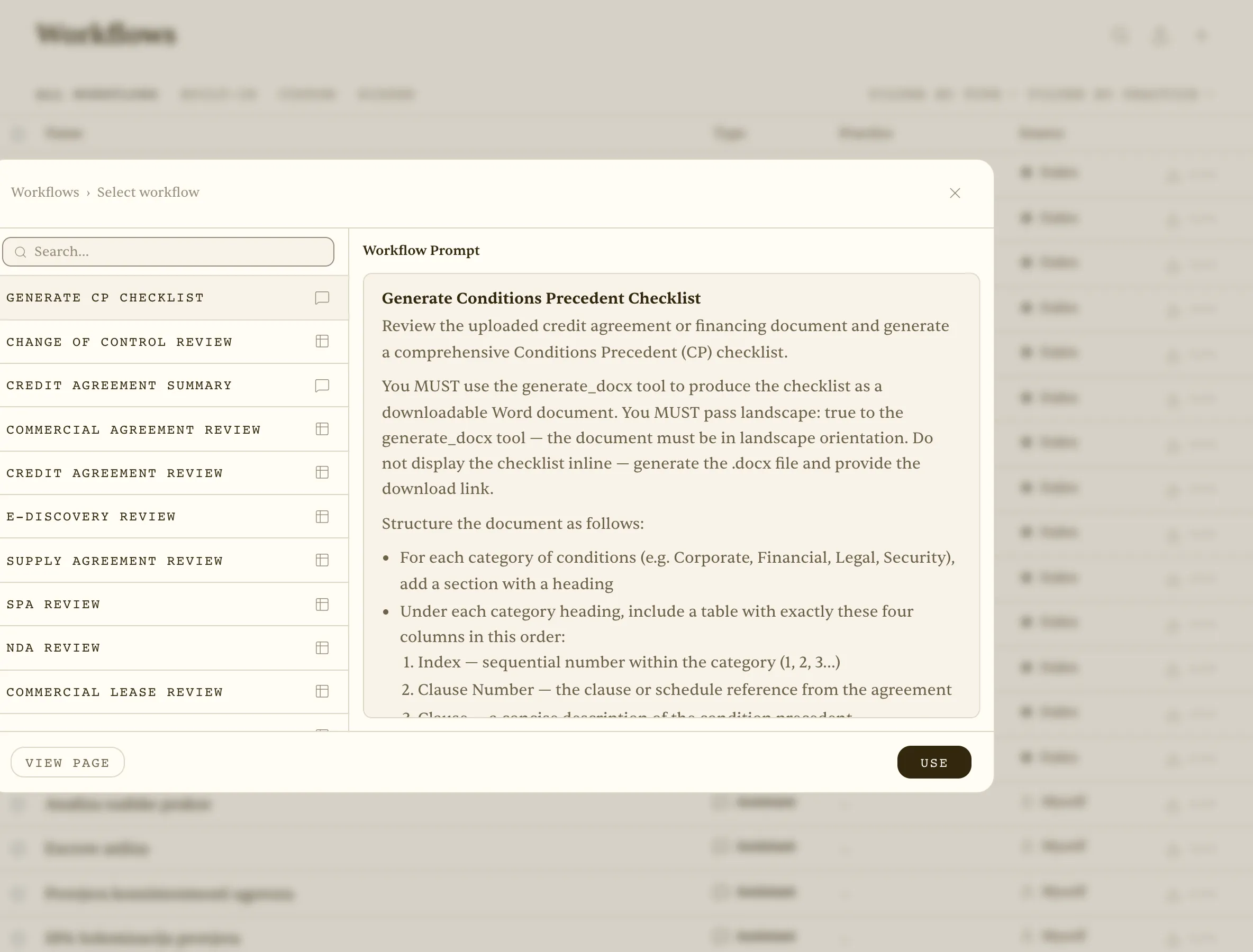 The ‘Generate CP Checklist’ workflow — prompt template applied to an attached credit agreement
PII shield
20. Anonymising a claim containing personal IDs (GDPR)
Who: Lawyer with a sensitive file. Situation: The claim contains names and personal IDs; analysis is needed without exposing personal data to the AI.
A claim with names, personal IDs and addresses must not reach a model in raw form. The PII shield in Settings → Privacy (Off / Standard / Strict — legal) masks personal data before anything reaches a model or external tool; a review modal shows the detected entities before sending, and the AI works on pseudonyms (PERSON_1). The answer comes back with real names restored only for you, and a status badge confirms the shield is active.
Result: The AI works on pseudonyms (PERSON_1); personal data stays hidden; status shows ‘PII shield active’.
Tips
- ‘Strict — legal’ for files involving third parties; ‘Standard’ for internal documents.
- Review the modal — add entities the detector missed.
- The shield applies to the Word add-in and tabular reviews as well.
See: /docs/pii-shield
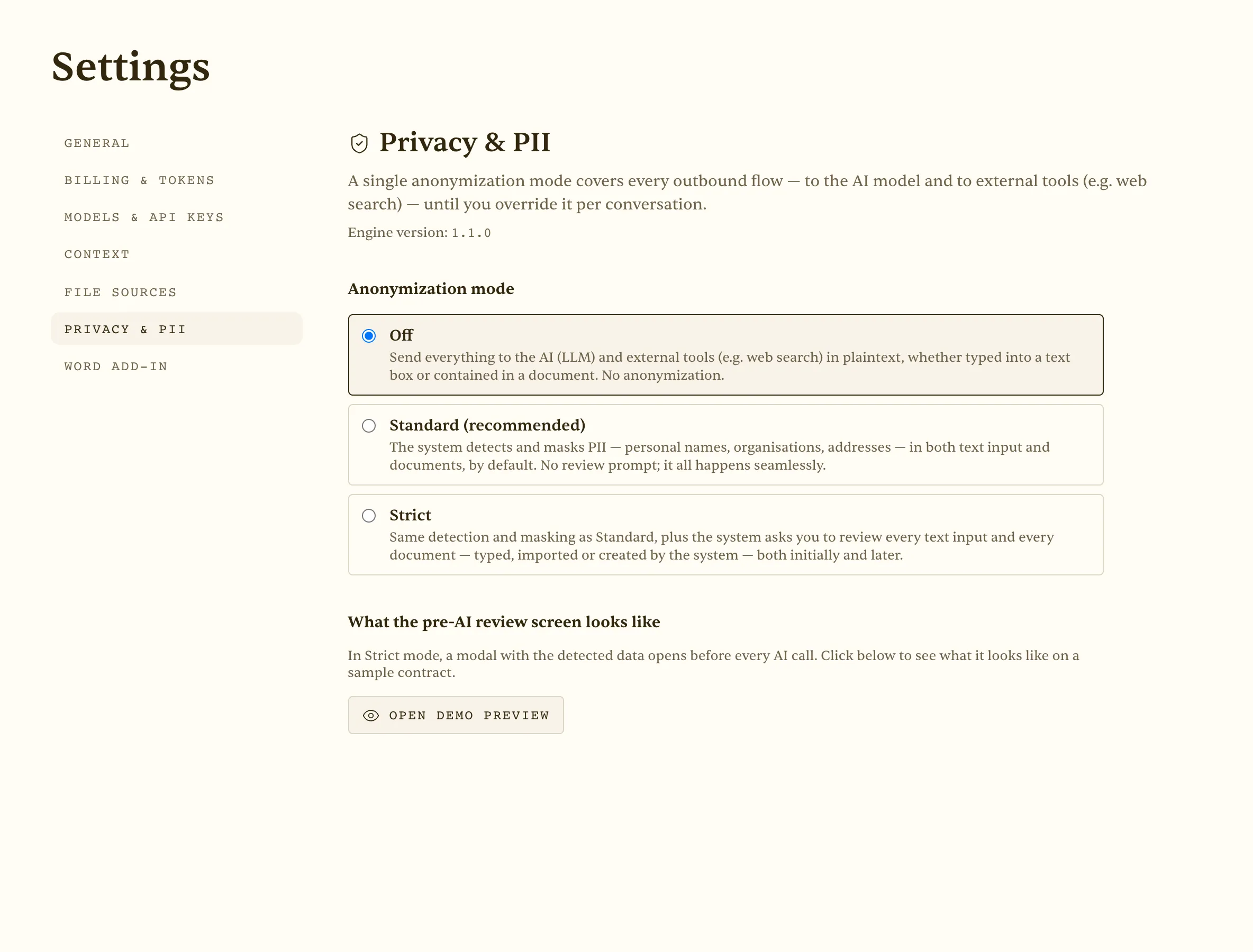 Account → Privacy & PII shield — Off / Standard / Strict modes
